A classroom runs on links: the syllabus, the homework portal, the lunch menu, the parent pickup form, the library catalog, the field-trip permission slip, the absent-student makeup work. Before QR codes, teachers wrote each one on the board, students typed it on phones, half the class fat-fingered the URL, and the rest gave up. A QR code for education replaces every one of those handwritten links with a single scan. This guide shows you the 7 ways teachers, schools, and universities use QR codes right now — with the specific copy, the right placement, and the student-data privacy rules every educator needs to know.
By the end, you’ll have a complete QR code playbook for any classroom, K-12 or higher ed: which codes to print, where to put them, what to encode, and what to never put in a code that students under 13 will scan.
Why Classrooms Need QR Codes
The average K-12 student in 2025 owns their first smartphone by age 11. The average college freshman owns one for 5+ years before setting foot on campus. They all type the same way: fast, sloppy, and one typo away from a phishing site that looks exactly like the school portal. QR codes remove the typing entirely, which means the URL the teacher intended is the URL the student reaches.
Three reasons education is different from every other industry that uses QR codes:
1. Students of all ages share one space
A single classroom serves 6-year-olds learning to read and 17-year-olds preparing for college. A QR code works for both because the phone does the work. The design challenge is making the code visible to a kindergartner at the front row and an adult at the back row without scrolling the camera around.
2. Privacy law treats minors differently
In the US, COPPA (Children’s Online Privacy Protection Act) restricts what data services can collect from children under 13. In the EU, GDPR-K has stricter rules for minors. A QR code that links to a service that tracks student scans is a different legal entity than one that links to a static PDF syllabus. We’ll cover what’s safe later, but the rule is: link to your own server, never to a third-party tracker.
3. Devices rotate constantly
A K-12 classroom in 2025 has students who switch phones every 2 years and school-issued Chromebooks that get wiped every summer. A QR code has to work on all of them, all the time, with no app install. Static QR codes do this for free. Dynamic codes need a redirect service that survives whatever the IT department does to the device.
Homework Portals and Assignment Links
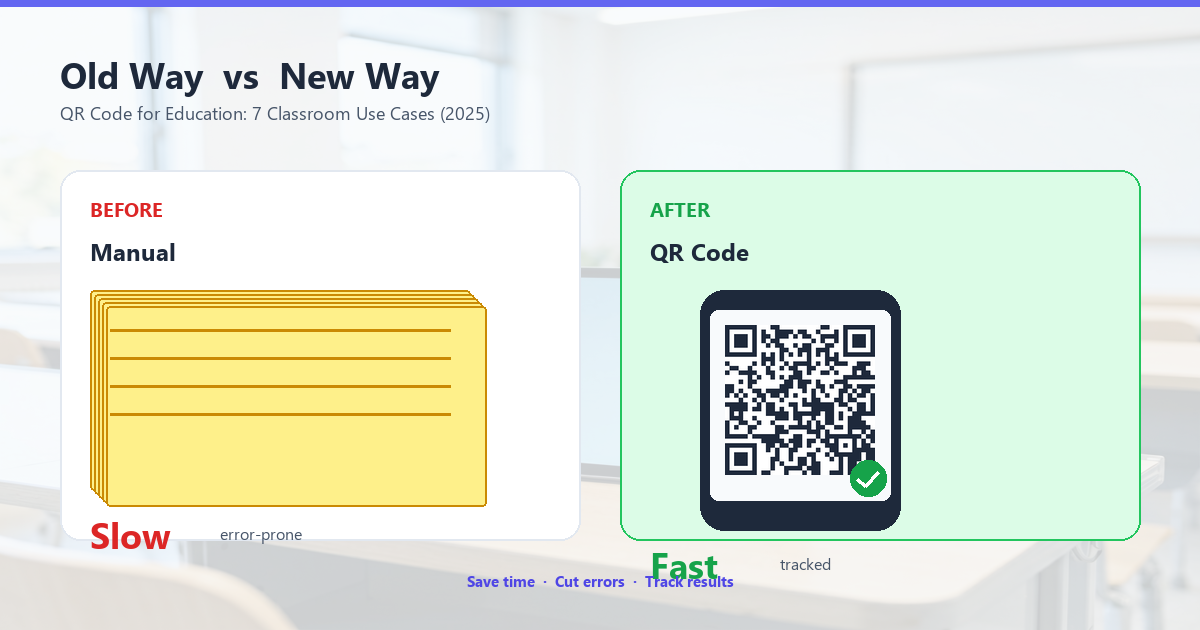
The single biggest time sink in modern teaching is the 90 seconds at the start of every class spent dictating the URL for today’s homework. “Go to mrcoleman dot school district dot edu slash homework slash week 7…” Half the class writes it down wrong. The other half asks the kid next to them. Three minutes later, the bell has rung and 5 minutes of class time are gone.
How to set up homework QR codes
Generate a URL QR code that points to your class’s homework portal. The QR code goes on:
- The opening slide of every lesson (visible to all students simultaneously).
- The classroom door (for students who arrive late).
- The weekly parent newsletter (for parents who want to check what’s due).
- The substitute teacher folder (for days you’re out).
Use a static QR code if your homework URL is stable across the term (most Learning Management Systems like Canvas, Google Classroom, and Schoology use a single URL all year). Switch to dynamic only if you’re posting one-off links to external resources.
What to encode in the URL
The URL itself should not include student names, IDs, or assignment scores. A clean URL like https://classroom.google.com/c/MATH42 works. Adding ?student=john-doe in the URL is a privacy risk, even if it looks convenient.
Syllabus, Handouts, and Curriculum
The syllabus is the most-printed document in education. The average K-12 teacher prints 30 copies per class, 5 classes per semester, 2 semesters per year — 300 sheets of paper for a document 95% of students never read again after week 1. A QR code on the first slide linking to a PDF or Notion page reduces the print run to 5 (one for each student who actually wants a paper copy) and gives everyone else permanent access.
What works for digital syllabi
A QR code that links to a Google Doc, Notion page, or PDF in your school’s Google Drive is the gold standard. The link should be:
- Set to “anyone with the link can view” if it’s general information (calendar, units covered).
- Behind a login if it contains student grades, accommodations, or private notes.
- Versioned with a date stamp so students know they’re reading the latest.
Where to put it
The syllabus QR code goes on the course syllabus page of the school website, in the welcome packet given to new students, and on the back of the student ID card (if your school issues them). It should be the same code everywhere — print it once, reuse it.
Library Catalogs and Resource Links
School libraries are where the QR code shines. A static QR code on every shelf, every book, and every reference desk removes the “how do I find this on the computer” friction that stops 80% of student research before it starts.
Three QR codes every library needs
- Catalog QR code — on every shelf end, linking to the library’s online catalog. Scan, search by title or author, reserve.
- Database QR code — on every research desk, linking to the school’s paid research databases (JSTOR, EBSCO, ProQuest). Scan, login with school credentials, search.
- Citation QR code — on the librarian’s desk, linking to a one-page citation guide. Scan, format the citation in MLA / APA / Chicago.
The citation QR code alone saves the librarian 20 minutes per day of “how do I cite this?” questions.
What to encode for accessibility
If your school serves students with visual impairments, pair every QR code with a large-print URL underneath it, plus an NFC tag for students who use assistive tech that reads NFC better than cameras. The QR code is the fast lane; the alternatives are the slow lane. Both must exist.
Field Trips and Permission Slips
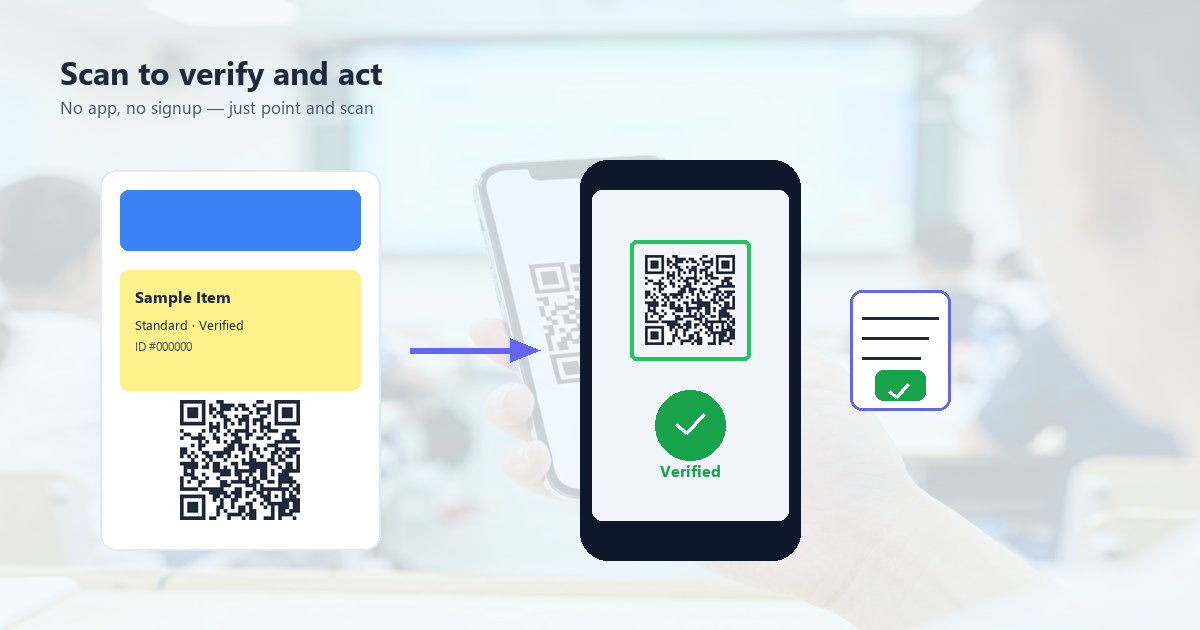
The paper permission slip is the bane of every teacher’s life. 28 students, 28 forms, 28 signatures from parents, 28 chances for a student to “forget” the form and miss the trip. A QR code that links to a digital permission slip on Google Forms or Microsoft Forms cuts the turnaround from 2 weeks to 2 days and gives you a live count of who has signed.
What the QR code should link to
A form that asks for: student name, parent name, emergency contact, known allergies, signature (typed), and a checkbox for the school’s liability waiver. The form must be stored on the school’s own server or Google Workspace for Education — never on a third-party form service that monetizes parent email addresses.
Where to put it
On the field trip announcement email, on the paper handout (for parents who don’t check email), on the classroom whiteboard for the 2 weeks before the trip, and in the school newsletter. Use a dynamic QR code so you can update the destination URL if the trip details change (date, destination, pickup time).
Attendance and Check-In
Taking attendance eats 5 minutes per class. Across 5 classes a day, that’s 25 minutes — half a period a week, two full periods a month. A QR code on the classroom door that links to a Google Form (or Microsoft Form, or your school’s SIS portal) lets students check themselves in by scanning as they walk in.
The privacy tradeoff
Self-check-in QR codes work best in high school and college, where students have school-issued accounts and the system already knows who they are. In elementary school, the same system needs a teacher to verify each scan, which negates most of the time savings. Match the system to the grade level.
What the URL must contain
The URL should pass a one-time token that expires after 5 minutes, so a student can’t scan the code from home to mark themselves present. Generate the token at the start of class, embed it in the dynamic QR code, expire it at the end. The student scans, the form pre-fills their name from their login, the form submits, the teacher sees attendance update in real time.
Parent Communication and Pickup
Schools send parents a lot of paper: report cards, permission slips, lunch menus, event flyers, pickup authorizations, illness notifications. A QR code on every piece of paper that links to the school’s parent portal gives parents permanent access without the school having to print extras.
Pickup authorizations specifically
The QR code on a student’s pickup card should link to a page that lists the authorized adults for that student (parent, grandparent, designated caregiver) and the date the authorization was last verified. The school’s front desk scans the card, sees who’s authorized, releases the student. If the parent updates the list (new caregiver, divorce decree change), the page updates without reprinting the card.
Lunch Menus and Cafeteria Service
School cafeterias print the lunch menu weekly. A QR code on the menu board that links to the live menu (with allergen filters and nutrition info) lets students and parents check what’s being served before they get in line. It also lets the cafeteria publish last-minute changes (a supplier cancellation, a special event) without reprinting.
What to encode
A static QR code linking to your school nutrition service’s menu page. The page should support filters for: vegetarian, vegan, gluten-free, halal, kosher, nut-free, and dairy-free. Pair the filter UI with icons next to each menu item so non-English-speaking parents can scan and understand at a glance.
FAQ
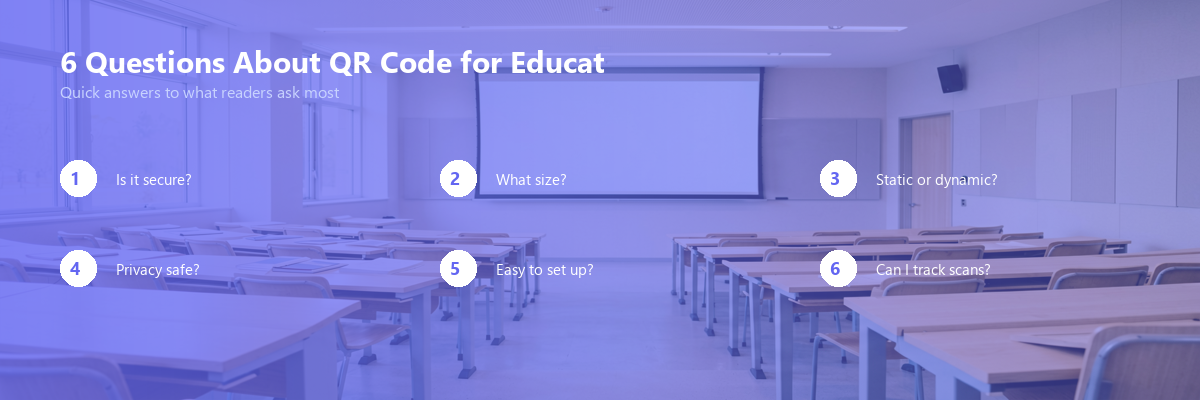
Are QR codes safe for kids to scan?
The QR code itself is just an encoded URL. What matters is what the URL links to. A QR code on a school whiteboard linking to the school’s own learning portal is safe. A QR code in a public park that a stranger placed there is not. Teach kids the same rule you teach them about URLs: only scan codes from sources you trust. Schools can enforce this by using only static QR codes they generate themselves, never third-party dynamic codes from unverified vendors.
What size should classroom QR codes be?
For codes scanned from the back row (8-10 meters): 10 cm × 10 cm minimum, with error correction level Q. For codes scanned from the front row (1-2 meters): 3 cm × 3 cm works. For codes on handouts and worksheets: 2 cm × 2 cm is fine. Always test on the actual devices students will use — a phone from 2019 scans slower than a phone from 2025.
Static or dynamic for education?
Use static for anything that doesn’t change (library catalog, syllabus, school website). Use dynamic for anything that updates (homework portal, field trip links, lunch menu). Dynamic codes cost money through a vendor — for K-12 budgets, that’s worth it only for codes that change more than once a term.
What about COPPA and FERPA?
COPPA (US, under-13) and FERPA (US, all grades, education records) both restrict what student data can be collected. A QR code that links to a Google Form embedded in your school’s Google Workspace for Education is generally compliant. A QR code that links to a third-party survey service that sells student data is not. When in doubt, ask your school’s privacy officer before publishing.
Can students make their own QR codes?
Yes, and it’s a great lesson. For ages 8+, have students generate QR codes for their own projects, portfolios, or research papers. It teaches them how URLs work, how to verify a destination before sharing it, and how a single scan can replace a dozen typed characters. Most free QR generators are appropriate for classroom use — pick one that doesn’t require an account and doesn’t track scans.
How do I print QR codes that survive a school year?
Laminate them. A laminated QR code on a classroom door will survive 200 days of student traffic, cleaning solution, and the occasional spill. Unlaminated paper QR codes fade in 1-3 months, especially in sunny windows or under fluorescent lights. Use color laser printing (not inkjet) for fade resistance.
Implementation Checklist for Teachers
- Identify the 5 links you share with students most often (homework, syllabus, etc.).
- Generate a QR code for each. Use the free generator at QR Tool Studio if you need a no-account tool.
- Print one test copy. Test it on 5 different phones — yours, a colleague’s, a student’s, a parent’s, the school iPad.
- If all 5 scan reliably, laminate the code and post it.
- Add the URL underneath in 14pt font for accessibility.
- Teach students the rule: only scan codes from sources you trust.
- Update the codes every term (or sooner if URLs change).
- Track which codes get scanned and which don’t. The ones that don’t are mispositioned or the URL is wrong.
- At the end of the year, audit. Codes that aren’t being used, remove. Codes that are, keep.
What to Do Next
A QR code is a square. What matters is the link behind it. If you’re a teacher or school administrator and need a free QR code generator that runs entirely in your browser — no account, no data leaves your device, no student tracking — QR Tool Studio generates it in under a minute. Print it, laminate it, post it. Students scan, you save paper, everyone wins.
For the technical side of QR code design (size, contrast, error correction), see our QR code design best practices. For specific event and ticket use cases, see QR codes for events. For how QR codes work at the data level (capacity, encoding), see how QR codes work.