Making a QR code for a link takes 30 seconds. There\u2019s a learning curve of about 60 seconds, and that\u2019s what this guide is for. By the end, you\u2019ll have a working QR code, know how to test it, and know the three mistakes that make QR codes unscannable. No jargon, no upsell, no app to download.
This guide works whether you want a QR code for a business card, a flyer, a product page, or a video. The mechanics are the same: pick a URL, generate a code, test it, use it. The only differences are the design choices, which we\u2019ll cover.
Before You Start: 3 Things You Need
- A destination URL. The link you want the QR code to point to. It should be a real, working URL that resolves when someone types it into a browser. Don\u2019t use a URL shortener for the destination \u2014 it adds a layer of dependency that can break.
- A QR code generator. Any browser-based tool works. Look for one that doesn\u2019t require signup, doesn\u2019t add a watermark, and lets you download in PNG or SVG. We\u2019ll use QRCode Studio for this guide, but the steps are the same for any tool.
- 30 seconds. That\u2019s it. The whole process is faster than brewing a cup of coffee.
Step 1: Decide Between a Direct URL and a Short URL
The destination you encode into the QR code matters more than any design choice. There are two options:
Option A: Use your URL directly
Most pages have a URL like https://yourbusiness.com/products/widget. You can encode this directly into the QR code. Pros: no middleman, works forever, the URL itself tells the user where they\u2019re going. Cons: long URLs make denser QR codes, harder to scan at small sizes.
This is the right choice 90% of the time.
Option B: Use a short URL as the destination
Short URLs (bit.ly/abc123, yourdomain.co/promo) reduce QR code density and let you track basic scan counts. Pros: shorter, easier to scan, gives you scan analytics for free. Cons: the short URL provider becomes a dependency, and the QR code can break if the short URL expires.
Use a short URL when the destination is genuinely long (>80 characters) or when you want scan analytics. Otherwise, use the direct URL.
Step 2: Open a QR Code Generator
Not all generators are equal. Here\u2019s what to look for:
- No signup required. If a tool asks you to create an account before generating a code, leave. There\u2019s no reason for that.
- No watermark. The QR code you download should be clean. Some free tools add a small "powered by" logo in the corner. That\u2019s fine for personal use but disqualifying for business materials.
- True vector SVG download. PNG is fine for screens, but for print (especially large formats), SVG keeps the code sharp at any size.
- Customization without paywalls. Color, logo upload, and error correction level should all be available without a paid plan.
- Multi-language support (if relevant). For international deployments, a tool that supports the languages of your audience saves you a translation step.
QRCode Studio checks all of these boxes. The rest of this guide uses it as an example, but the steps are universal.
Step 3: Configure Your QR Code
Most tools have the same basic configuration options. Here\u2019s what each one does and what to pick:
Format: URL
Pick "URL" or "Link" as the format. The tool will know to format the data correctly so phones recognize it as a clickable link. If the tool asks for the URL with or without "https://", include it. QR codes without the protocol often fail to open in browsers.
Color
Black on white is the most reliable. If you want a branded color (say, your brand\u2019s indigo), make sure the contrast ratio is high. The recommended minimum contrast ratio is 4:1 \u2014 use a contrast checker if you\u2019re unsure. Don\u2019t use a colored background; the scanner needs a clear light/dark contrast to find the modules.
Error correction level
Pick "Medium" (M) by default. It recovers about 15% of the data if the code is damaged. If you\u2019re adding a logo, pick "Quartile" (Q) or "High" (H) so the code can still be read with the logo area replaced.
Logo
Adding a logo is optional. It increases brand recognition but reduces the scan success rate slightly and forces you to use a higher error correction level (which makes the code denser). For business cards, a logo is recommended. For posters and packaging, skip the logo and let the QR code breathe.
Module size (for SVG export)
Most tools default to a reasonable size. If you have control, pick the smallest possible module size that keeps the code visually clean. Smaller modules = smaller file sizes, which is faster to download and easier to embed.
Quiet zone
The white margin around the code. Most tools handle this automatically. Don\u2019t crop it off in post-production.
Step 4: Test the QR Code Before You Print 5,000 Copies
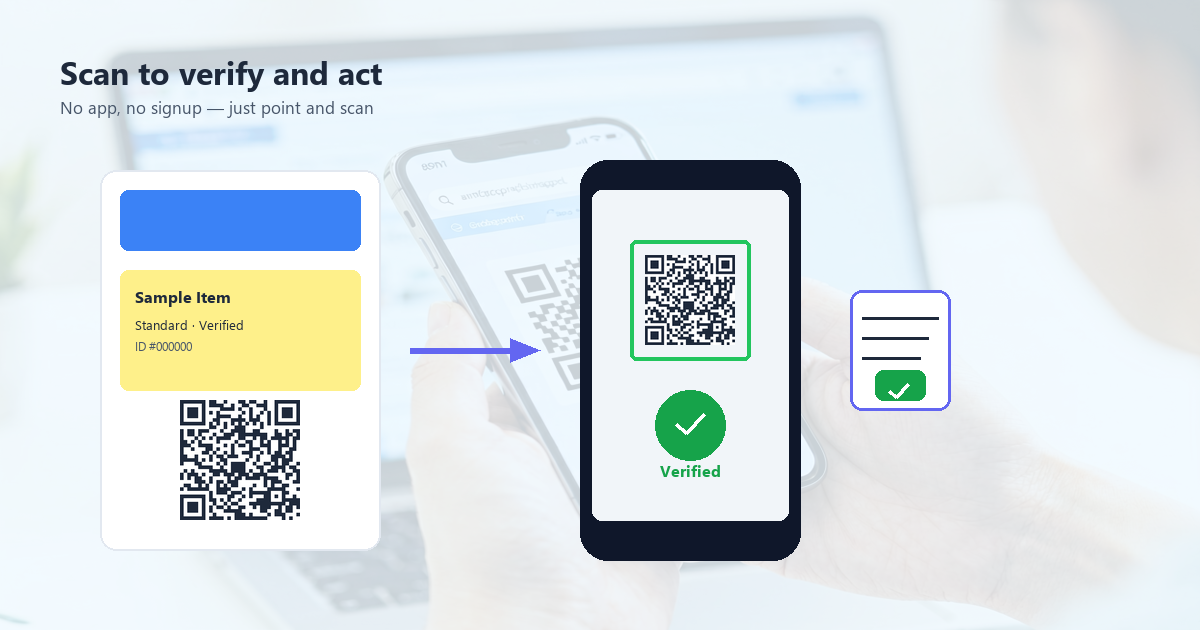
This is the step most people skip, and it\u2019s the step that catches the most mistakes. Before you commit a QR code to print or to a public deployment, test it with at least three different phone cameras.
What to test
- Multiple phones: iPhone (latest), iPhone (3-4 years old), Android (Samsung/Pixel), and one budget Android if possible. Different cameras resolve QR codes at different rates.
- Different lighting: Test in bright sunlight, indoor fluorescent, and dim restaurant lighting. Codes that work in one environment sometimes fail in another.
- Different angles: Hold the phone perpendicular to the code, then at 30 degrees, 45 degrees. Codes that look great head-on can fail at an angle if the quiet zone is too small.
- Different distances: If your code will be scanned at 1 meter, test at 1 meter. If at 5 meters, walk 5 meters away.
What to look for
- The code scans within 2 seconds. If it takes longer, the code is too dense or the contrast is too low.
- The phone opens the correct URL. The most common mistake here is a typo in the URL or a missing "https://".
- The destination URL loads. If the URL is broken, no amount of QR code testing will help.
If the code fails any of these tests, regenerate it. Don\u2019t deploy a QR code you haven\u2019t tested.
Step 5: Download in the Right Format
Two formats matter: PNG and SVG.
PNG for screens and small prints
PNG is a raster format, so it has a fixed pixel size. For email signatures, social media posts, and small prints (business cards, postcards), PNG at 300x300 pixels or larger is enough. For larger prints (posters, banners), export PNG at the actual print size at 300 DPI minimum.
SVG for print at any size
SVG is a vector format. It scales to any size without losing sharpness. Use SVG for anything that will be printed on a professional printer: posters, packaging, signage, business cards. SVG files are also smaller in file size than high-DPI PNGs, which makes them easier to share.
If you can only download one format, download SVG. You can always convert SVG to PNG later using a free online tool or an image editor like Inkscape or Illustrator.
Step 6: Use It in the Right Context
A QR code is only as good as its placement. Three principles to follow:
1. Size for the scan distance
The QR code should be at least 1 cm wide per 10 cm of expected scan distance. A business card QR (scanned at 20 cm) needs to be at least 2 cm wide. A poster QR (scanned at 1 meter) needs to be at least 10 cm wide. A billboard QR (scanned at 5+ meters) needs to be at least 50 cm wide.
2. Place it where eyes naturally go
Studies of QR code scan rates show 3x higher engagement when codes are placed at eye level. A QR code in the corner of a flyer gets scanned 30% of the time; the same code in the center, at eye level, gets scanned 80% of the time.
3. Add a call to action
A QR code without a call to action is a mystery. Tell people what they\u2019ll get when they scan: "Scan to see the menu," "Scan to download the app," "Scan for a 10% discount." Adding a one-line CTA next to the QR code doubles the scan rate.
5 Mistakes That Make QR Codes Unscannable
After reviewing thousands of deployed QR codes, these are the mistakes that come up over and over:
1. URL typo or missing protocol
Generating a QR code for yourbusiness.com instead of https://yourbusiness.com is the single most common mistake. The QR code scans fine; the phone just doesn\u2019t know what to do with a URL that has no protocol.
2. Low contrast
A light gray QR code on a white background is technically a QR code, but no scanner can read it. The contrast ratio between the code and the background should be at least 4:1. Black on white is the safest choice.
3. No quiet zone
Cropping the white border around the QR code to "save space" makes the code unscannable. The quiet zone is not optional. If you must integrate the code into a busy background, add a solid white rectangle behind the code first.
4. Logo too large
A logo that covers more than 30% of the QR code area makes it unscannable, even with high error correction. Keep logos under 25% of the code area, centered, and roughly square.
5. Compressing to JPEG
JPEG compression introduces artifacts that look fine to the human eye but confuse scanners. Always use PNG or SVG. Never save a QR code as JPEG.
Frequently Asked Questions
How long does it take to make a QR code for a link?
With a browser-based generator, about 30 seconds. With a tool that requires signup, 2-3 minutes. With a professional design tool like Illustrator, 5-10 minutes.
Do I need an app to scan a QR code?
No. Every iPhone since 2017 and every Android phone since 2018 has a built-in camera that scans QR codes natively. No app needed. Users just point and tap.
Can I edit a QR code after I\u2019ve printed it?
Only if it was a dynamic QR code (one that points to a short URL you control). Static QR codes encode the destination directly and cannot be changed. If you need to be able to edit later, use a short URL as the destination.
Conclusion: 30 Seconds and a URL
Making a QR code for a link is one of the few things in 2025 that\u2019s still 30 seconds of work. There\u2019s no app to download, no account to create, no payment to make. Pick a tool, paste a URL, test with two phones, and you\u2019re done.
The complexity comes in the design decisions: color, size, error correction, placement. Get those right, and your QR code will work reliably for years. Get them wrong, and no amount of testing will save it. The mistakes to avoid are well known: low contrast, no quiet zone, oversized logos, JPEG compression. Skip those, and you\u2019re 90% of the way to a perfect deployment.