Scanning a QR code from a screenshot is a surprisingly common need. Someone sent you a QR code in a text or email. You saw one in a tweet or a chat. You saved one to your photos. Can you scan it without printing it first? The answer is yes, on most modern phones, with no extra app required.
This guide shows you how to scan a QR code from a screenshot on iPhone and Android. The process takes about 10 seconds and works on any QR code image you have access to.
Why Scan a QR Code from a Screenshot?
You\u2019d think this would be a rare need, but it comes up more often than people expect:
- Someone sent you a QR code in a text, email, or chat
- You took a screenshot of a QR code on a website or document
- You saw a QR code in a video and screenshotted it
- You saved a QR code to your photo library to scan later
- You\u2019re testing a QR code you generated and want to verify it works
In all these cases, the QR code lives in a digital image, not a physical object. The question is whether you can scan a QR code without first printing it.
The Short Answer
Yes. Every modern phone (iPhone 11+ and Android 9+) can scan a QR code from a screenshot or photo in the camera roll, no app required. The camera app on these phones includes a \u201cscan from photo\u201d feature that recognizes QR codes in images you already have.
How to Scan a QR Code from a Screenshot on iPhone
On iPhone, the process is built into the Photos app:
- Save the QR code to your Photos. Long-press the QR code image, then tap \u201cAdd to Photos\u201d (or it saves automatically if it was sent to you).
- Open the Photos app and find the image.
- Tap the QR code image to open it full screen.
- Look for the QR code recognition indicator. A small yellow QR code icon appears in the bottom-right corner of the image. Tap it.
- The action runs. A browser opens the URL, the mail app opens a draft, the WiFi settings open, etc. \u2014 depending on what the QR code contains.
Note: the indicator sometimes takes a second or two to appear. If you don\u2019t see it, swipe down on the image to refresh the view.
How to Scan a QR Code from a Screenshot on Android
On Android, the process depends on the manufacturer (Samsung, Pixel, OnePlus, etc.) and the camera app version. Most modern Android phones support one of two methods:
Method 1: Google Lens (Pixel, most Android phones)
- Open the Google Photos app
- Tap the QR code image
- Tap the Google Lens icon at the bottom
- Lens recognizes the QR code and shows the action
- Tap to open the URL, save the contact, join the WiFi, etc.
Method 2: Samsung Gallery (Samsung phones)
- Open the Gallery app
- Tap the QR code image
- Tap the \u201cBixby Vision\u201d or \u201cScan QR code\u201d button
- Samsung recognizes the QR code and shows the action
Method 3: Camera app (some Android versions)
- Open the Camera app
- Switch to the photo library view (usually by swiping right or tapping a thumbnail)
- Tap the QR code image to bring it up in the camera view
- The camera recognizes the QR code in the image
If you\u2019re not sure which method works on your phone, try the Google Photos method first \u2014 it works on most Android devices.
What If It Doesn\u2019t Work?
If the QR code image won\u2019t scan, here are the most common reasons and fixes:
1. The image is too small or low resolution
If the QR code in the image is less than 200x200 pixels, the phone may have trouble reading it. Try to get a higher-resolution version of the image.
2. The image is rotated
QR codes can be read at any angle, but if the image is captured upside down or sideways in a way that crops part of the code, it won\u2019t scan. Rotate the image and try again.
3. The image has visual effects or compression
If the QR code was screenshotted through a service that applies filters, compression, or visual effects (some social media do this), the QR code may be unreadable. Get a clean copy of the image.
4. The image is a photo of a screen, not a screenshot
If you took a photo of a screen showing a QR code, the screen refresh (flicker) and lighting may have introduced noise. Take a screenshot instead, or take the photo with better lighting and a steady hand.
5. The image is from a video frame
Video compression can damage QR codes. If you captured the QR code from a video, try to find a still version (the creator may have a download link).
What If You Generated the QR Code?
If you generated a QR code and want to test it, the easiest way is to scan it from a screenshot. The process:
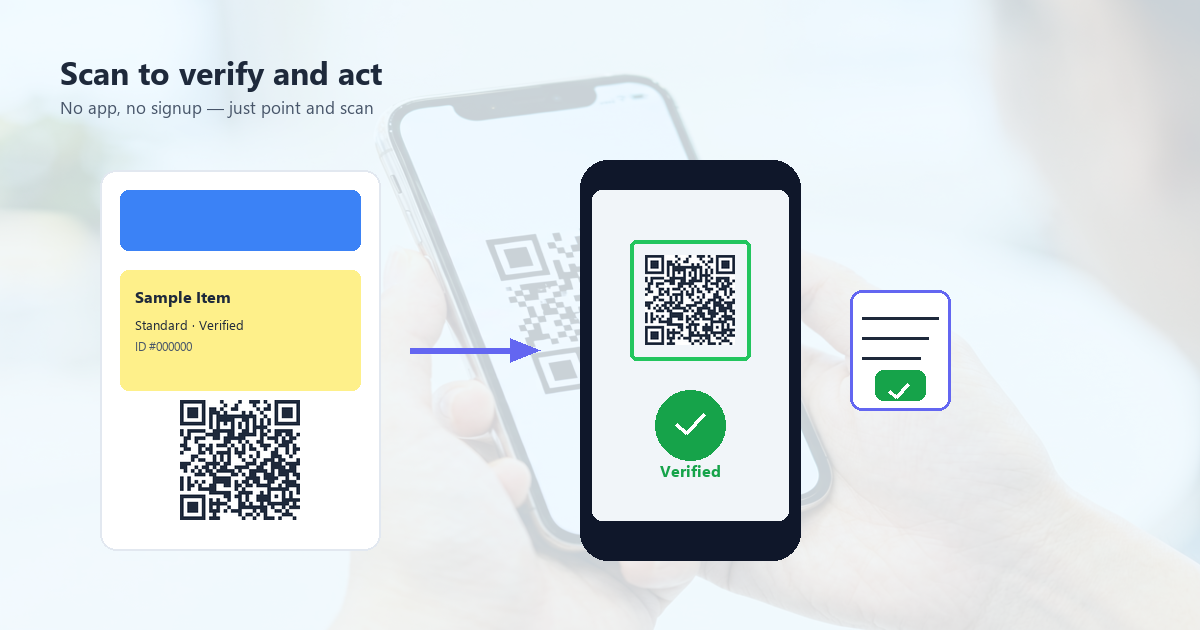
- Generate the QR code in your browser
- Take a screenshot of the rendered code (Windows: Win+Shift+S, Mac: Cmd+Shift+4, or just the Print Screen key)
- Transfer the screenshot to your phone (email, AirDrop, cloud sync, etc.)
- Scan from your phone\u2019s photo library
- Verify the destination URL is correct
This is faster than printing and scanning, and works for any QR code.
How to Send a QR Code to Someone
If you want to send a QR code to someone, just send the image. The most common methods:
- Text/iMessage: most phones recognize QR codes in image messages and offer to scan them
- Email: attach the QR code image; the recipient opens it and scans from their email
- AirDrop (iPhone): send the image; the recipient gets it in their Photos
- Cloud storage: share a link to a QR code image file
- Direct link: if the QR code is hosted online, share the URL
For maximum compatibility, send the QR code as a PNG image. JPGs and compressed images may not scan reliably.
A Note on Security
QR codes can be malicious. The pattern itself is just data; what it points to could be a phishing site, a malicious download, or an unwanted subscription. This is true whether you scan from a physical surface or from a screenshot.
When scanning any QR code, follow the same precautions you would for any URL:
- Check the URL preview before opening (both iOS and Android show the destination before opening)
- Don\u2019t scan QR codes from untrusted sources (random flyers, suspicious emails)
- If the destination looks wrong, don\u2019t open it
- Don\u2019t enter personal information on a site you reached by scanning a QR code unless you trust the source
Scanning a QR code from a screenshot is no more or less safe than scanning from a physical surface. The risk is in the URL, not the scanning method.
Frequently Asked Questions
Can I scan a QR code from a photo someone sent me on Instagram?
Yes, but Instagram compresses images aggressively. The QR code may be damaged in the compression. If it doesn\u2019t scan, ask the sender for the original file.
Can I scan a QR code from a PDF?
Yes. Take a screenshot of the QR code in the PDF, then scan the screenshot. Most PDF viewers on phones support screenshots.
Can I scan a QR code from a video?
Sometimes. Video compression can damage QR codes. Pause the video at a clear frame, take a screenshot, then try to scan. If it doesn\u2019t work, you may need to find a still version.
Does the image need to be a screenshot or can it be a photo of a screen?
Screenshots work best because they\u2019re exact pixel copies. Photos of screens (using your phone\u2019s camera) often have moiré patterns, glare, or other artifacts that confuse QR readers. If you must use a photo, take it with good lighting and a steady hand.
What if the image is on my computer, not my phone?
AirDrop the image to your iPhone, or email it to yourself, or upload it to a cloud service. Then scan from your phone\u2019s photo library.
Conclusion: 10 Seconds from Image to Action
Scanning a QR code from a screenshot is one of those features that sounds niche until you need it. Then you realize it\u2019s been there the whole time. Modern phones can read QR codes from any image in your photo library \u2014 no app, no printer, no second device.
Use it to test QR codes before printing, to share QR codes with friends, and to access QR codes that arrive digitally. The process takes 10 seconds, and once you\u2019ve done it once, you\u2019ll wonder how you ever lived without it.