Picture this: a customer walks into your cafe, asks for the WiFi password, and you’re elbow-deep in a latte. You scribble it on a napkin. They misread the uppercase L for a one. You give up and walk over. That tiny moment just cost you a smile and 30 seconds. A WiFi QR code eliminates it forever.
Instead of telling people your password, you print a single QR code. They scan it with their phone’s camera, tap “Join,” and they’re online. No typing. No typos. No napkin disasters.
This guide covers everything: what WiFi QR codes are, why your business should use one, how to make one in under a minute, and the design mistakes that break scannability. By the end, you’ll have a printable QR code that actually works.
What Is a WiFi QR Code?
A WiFi QR code is a regular QR code that, when scanned, automatically connects a phone to a wireless network. It does this by encoding a small block of text that follows a specific format your phone understands:
WIFI:T:WPA;S:YourNetworkName;P:YourPassword;H:true;;When you point your camera at this code, your phone reads it as a network configuration request and prompts you to connect. On iOS 11+ and Android 10+, this works natively. No app required.
Why it works everywhere
Apple and Google both implemented this standard in their default camera apps. As of 2025, over 95% of smartphones in active use can read a WiFi QR code without installing anything. That’s why you see them on tables in every Starbucks, on the back of every AirBnB TV, and in every modern hotel lobby.
Why Every Small Business Should Use One
If you serve customers and you have WiFi, a WiFi QR code pays for itself the first time someone doesn’t ask for the password. Let’s break down the real benefits.
1. Friction-free customer experience
The average cafe customer types a 12-character password wrong 1.7 times. They get frustrated. They mutter about “the algorithm.” A scan-and-connect flow takes under 2 seconds and feels magical. First impressions matter, especially in hospitality.
2. You can change passwords without changing the code
Here’s the underrated superpower: your QR code encodes your network name, not a URL. So when you rotate your WiFi password (which you should do quarterly for security), you only need to update the QR code. Your physical signs, table cards, and window clings stay in place. Just print a new code and swap it in.
3. Less support overhead
No more “is it capital or lowercase?” “do I include the dash?” “why won’t my phone connect?” The whole point is that the customer’s phone handles the technical part. You go back to making coffee.
4. It looks professional
A branded WiFi QR card on every table signals “this place is thoughtful.” It’s a tiny detail that compounds with the rest of your customer experience.
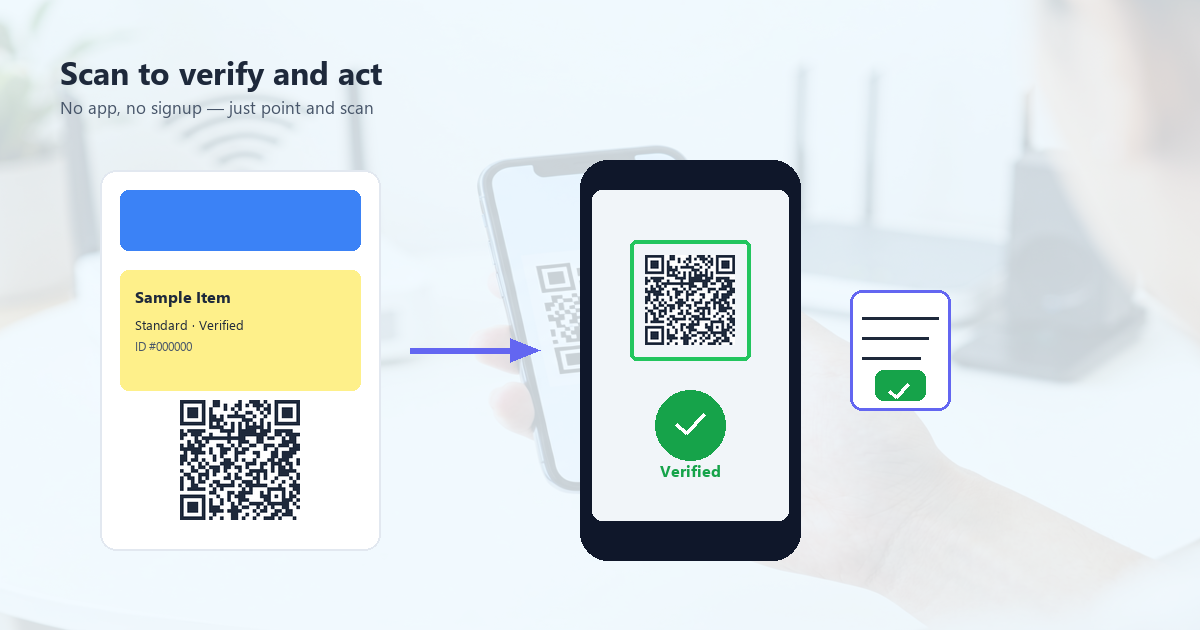
How to Create a WiFi QR Code (3 Steps)
The fastest path from “no QR code” to “printable, branded, scannable QR code” takes about 60 seconds with the right tool. Here’s the exact workflow.
Step 1: Enter your network details
You need three things:
- Network name (SSID): the name your customers see in their WiFi list (e.g. “CafeAurora-Guest”)
- Password: your current WiFi password
- Security type: usually WPA/WPA2. If you have an open network, pick “none.”
Most QR code generators have a dedicated “WiFi” type that asks for exactly these three fields. QR Tool Studio has this built in — it’s the WiFi tab in the generator.
Step 2: Customize the design (optional but recommended)
The default is a black-and-white QR code. It works, but it’s generic. If you want it to look like part of your brand, you can:
- Change colors to match your brand palette (e.g. your brand’s primary color)
- Add a logo in the center (your cafe’s logo, a WiFi icon, or anything else)
- Adjust the error correction level if you add a logo (more on that below)
Keep the QR code itself dark on a light background. Don’t invert. Don’t use low-contrast colors. A purple QR on a black background looks cool but won’t scan in low light.
Step 3: Download and print
Export your QR code as PNG or SVG. PNG is fine for most use cases; SVG is better if you want to print at very large sizes (like a window cling). Print at minimum 2×2 cm (about 0.8×0.8 inches) for table cards. For posters or signs, go bigger — 10×10 cm or more so people can scan from a comfortable distance.
5 Best Practices for a Scannable QR Code
Most “my QR code doesn’t scan” complaints come from one of these five mistakes. Avoid them and you’ll be fine.
1. Keep error correction at H if you add a logo
QR codes have four error correction levels: L (7%), M (15%), Q (25%), H (30%). The higher the level, the more damage the code can sustain and still scan. If you put a logo in the center, you’re literally covering part of the code. Set the error correction to H so the rest of the code can compensate.
2. Don’t add a logo bigger than 30% of the code
The 30% rule is widely cited because QR codes have a lot of redundant data. Above 30%, you start losing too much information, especially at lower error correction levels. A small logo (15–25% of the code) is the sweet spot for visual impact and scannability.
3. Test in real lighting before printing 500 copies
Print one. Walk around your space. Scan it from different angles, in different lighting (sunlight through a window, dim evening light, fluorescent overhead). If it scans reliably in your environment, print the rest. If not, adjust the colors or size and test again.
4. Laminate or use waterproof paper for outdoor use
If the QR code is going on a window, door, or outdoor table, protect it. Lamination adds maybe $0.10 per card and means the code survives rain, coffee spills, and UV fading.
5. Include a fallback for old phones
About 3–5% of phones in the wild can’t read WiFi QR codes natively. For these users, include the network name and password as plain text near the code. Something like:
Network: CafeAurora-Guest
Password:  aurora2026
This tiny addition makes your code inclusive without cluttering the design.
Where to Put Your WiFi QR Code
Once you have the code, placement matters. Here are the highest-ROI spots based on common business types.
Cafes and coffee shops
Table tents, counter cards, the back of the menu. Make it the first thing the customer sees when they sit down. Bonus points for putting it on the receipt printer so every transaction includes a reminder.
Restaurants
Inside the menu, on a standee near the host stand, on table cards. Some restaurants skip the printed menu entirely and put the WiFi code on a small card that doubles as a “scan to see our menu” QR. Two birds, one stone.
Boutique retail stores
Near the register (where customers wait) and on fitting room doors. This encourages browsing-on-WiFi behavior, which correlates with longer dwell time and higher conversion.
Hotels and B&Bs
In every room (a card on the desk is standard), at the front desk, in the welcome packet. AirBnB hosts put it on the fridge with a small “Welcome!” sign — high touch, very on-brand.
Offices and coworking spaces
Conference rooms, common areas, guest WiFi specifically. For coworking spaces, having a branded guest WiFi QR code is a small detail that makes members feel like they’re in a thoughtful space, not a stripped-down WeWork.
Branded vs. Plain: Does Design Matter?
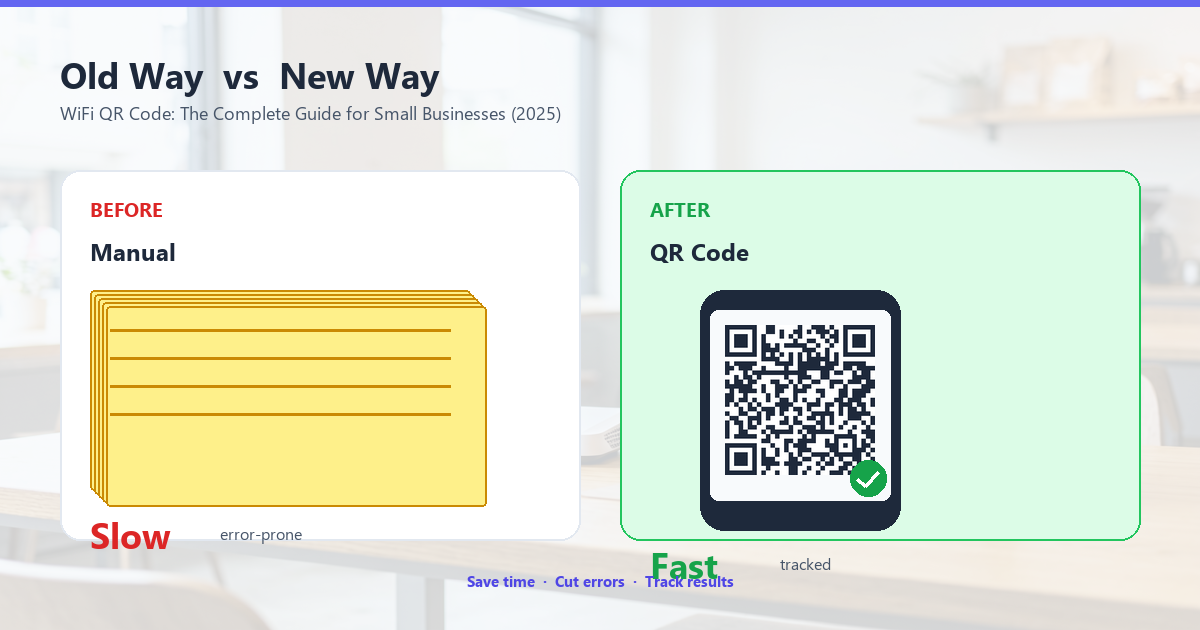
Functionally, a black-and-white QR code and a branded one are identical. Both scan. Both work. But there’s a perceptual difference that matters for businesses.
A plain QR code says “this is a free tool someone downloaded.” A branded QR code with your logo and colors says “this is part of the experience we’ve designed for you.” The latter is more memorable and reinforces brand identity with every scan.
If you’re a small business, the branded version is 5 extra minutes of work. Worth it.
Frequently Asked Questions
Is a WiFi QR code secure?
Yes, in the sense that the QR code itself doesn’t broadcast your password to anyone who scans it. But — and this is important — anyone who scans the code can see the password. So treat the QR code like you’d treat the password written on a sign. Put it where customers can see it, not where random passersby can grab a photo of it. For guest networks, this is fine. For your private office network, use a separate guest SSID.
Do WiFi QR codes work on iPhone?
Yes. iOS 11 and later (so iPhone 5S and newer, released 2013 onward) can read WiFi QR codes with the default Camera app. No third-party app required.
Do they work on Android?
Yes. Android 10 and later (released 2019 onward) supports WiFi QR codes in the default camera or Google Lens. Some older Android phones need a third-party scanner app, but those are increasingly rare.
Can I have one QR code for multiple networks?
Not with the standard WiFi QR format. If you have multiple networks (say, 2.4GHz and 5GHz with the same name), most routers handle this automatically — the phone picks the best signal. If you have truly separate networks, you’ll need separate QR codes.
How big should I print the QR code?
Minimum 2×2 cm (0.8×0.8 in) for close-range scanning on a table. For wall signs or window clings scanned from 1–2 meters, go 10×10 cm (4×4 in) or larger.
Do QR codes expire?
No. A QR code is just encoded text. It doesn’t point to a server, it doesn’t have an expiration date. The only thing that changes is your password — and you can update the code anytime without changing the placement.
Get Your WiFi QR Code in 60 Seconds
You’ve read the theory. Now make the actual code. QR Tool Studio has a free WiFi QR generator that works in your browser — no signup, no email, nothing installed. Just type your network name and password, customize the colors if you want, and download.
Your customers will thank you (silently, by not interrupting your latte art).