
You walk out of a conference with 47 business cards in your pocket. By the time you get home, the names are already blurring together. A week later, you find one in your jeans and have no idea who it was or why you kept it. A vCard QR code ends this. One scan, the contact saves itself.
Instead of trading paper and hoping you remember to enter it later, you share a single QR code. They scan it with their phone\u2019s camera, tap \u201cSave,\u201d and your name, number, email, job title, and company are now in their contacts. Permanently. Correctly. Without typos.
This guide covers what vCard QR codes are, why every working professional should use one, how to make one in about a minute, and the design and privacy mistakes that get it wrong. By the end, you\u2019ll have a scannable contact card you can share anywhere.
What Is a vCard QR Code?
A vCard QR code is a regular QR code that, when scanned, prompts the phone to save a contact. It works by encoding a small block of text in the vCard format, which is a universally accepted standard for digital business cards:
BEGIN:VCARD\nVERSION:3.0\nFN:Jane Cooper\nORG:Acme Industries\nTITLE:Head of Partnerships\nTEL;TYPE=WORK,VOICE:+14155551234\nEMAIL:[email protected]\nURL:https://acme.com\nEND:VCARDWhen someone points their camera at this code, their phone reads it as a contact file and offers to add it. On iOS 11+ and Android 10+, this happens natively. No app, no signup, no friction.
Why it works on every phone
vCard has been around since 1995. It\u2019s the format your phone\u2019s Contacts app already speaks. Apple and Google both built QR-based vCard import into their default camera apps over the past few years, which is why this works without any third-party app. Over 95% of smartphones in active use today can scan a vCard QR code out of the box.
Why Every Working Professional Needs One
Paper business cards are a 15th-century technology that\u2019s still in use. They get lost, forgotten, entered wrong, or just sit in a drawer. A vCard QR code fixes every one of those problems.
1. Zero typing, zero errors
The average person types 12-character names wrong 1.4 times, mistypes phone numbers 2.3 times, and skips the company field entirely. A scan-and-save flow takes 2 seconds and gets every character right. First impressions are made in those first interactions \u2014 typos in your own contact info don\u2019t help.
2. Update your info once, share forever
You change jobs, get a new email, switch phone numbers. With a paper card, you\u2019d reprint 500 cards. With a vCard QR code, you update the data behind the code, and the same physical QR \u2014 on your old cards, your website, your email signature \u2014 starts sharing the new info. The QR itself doesn\u2019t change; the data behind it does.
3. Save more than just a phone number
Paper business cards are size-limited. A vCard QR code can carry your full name, multiple phone numbers, work and personal email, job title, company, website, address, social handles, and even a profile photo. The phone saves it all in one tap.
4. Look professional in any context
A branded vCard QR code on your email signature, conference badge, or LinkedIn profile signals \u201cthis person is thoughtful about networking.\u201d It\u2019s a small detail that compounds.
How to Create a vCard QR Code (3 Steps)
The fastest path from \u201cno QR code\u201d to \u201cscannable, branded, shareable contact card\u201d takes about a minute with the right tool. Here\u2019s the exact workflow.
Step 1: Fill in your contact details
You need at minimum:
- Full name: the name you want people to see in their contacts
- Phone number: the primary number you want them to call
- Email: the address you actually check
Nice to have:
- Job title and company: tells them who you are without asking
- Website: LinkedIn profile, portfolio, or company page
- Address: useful for sales reps, real estate agents, recruiters
- Profile photo: helps people put a face to the name (optional, see Privacy below)
Most QR code generators have a dedicated \u201cvCard\u201d type that walks you through these fields. QR Tool Studio has this built in \u2014 it\u2019s the vCard tab in the generator.
Step 2: Customize the design (optional but recommended)
The default black-and-white QR code is functional but generic. If you want yours to look like part of your brand, you can:
- Change colors to match your company\u2019s brand palette
- Add a logo in the center (your company logo, your initials, a headshot)
- Pick a different corner style for visual interest
Keep the QR code itself dark on a light background. Don\u2019t invert. Don\u2019t use low-contrast colors. A purple QR on a dark background looks cool but won\u2019t scan in low light.
Step 3: Download and add it everywhere
Export your QR code as PNG or SVG. PNG is fine for most uses; SVG is better if you want to scale it to large sizes. Then add it to:
- Your email signature (most common place)
- Your LinkedIn profile (cover image or featured section)
- Conference badges and lanyards
- Your website\u2019s contact or about page
- Slack, Discord, or other chat profile pictures
- Print business cards as a supplement (not replacement \u2014 some people still want the paper)
5 Best Practices for a vCard QR Code
Most \u201cmy contact info didn\u2019t save right\u201d complaints come from one of these five mistakes. Avoid them and you\u2019ll be fine.
1. Use the most current vCard version
vCard has two versions in common use: 3.0 (from 1998, supported everywhere) and 4.0 (from 2011, more compact but less compatible). For maximum compatibility across all phones, use vCard 3.0. If you\u2019re building for a controlled environment (like an enterprise app), vCard 4.0 saves bytes. For a public-facing QR code, stick with 3.0.
2. Use the TYPE parameter for phone numbers and emails
vCard lets you label phone numbers as CELL, WORK, HOME, FAX, etc., and emails as WORK, HOME. This helps phones sort them into the right place. For example:
TEL;TYPE=WORK,VOICE:+14155551234\nEMAIL;TYPE=WORK:[email protected]Without these labels, the contact saves correctly but everything goes into a generic \u201cother\u201d field, which looks messy on the recipient\u2019s phone.
3. Keep error correction at H if you add a logo
QR codes have four error correction levels: L (7%), M (15%), Q (25%), H (30%). The higher the level, the more damage the code can sustain and still scan. If you put a logo in the center, you\u2019re literally covering part of the code. Set the error correction to H so the rest of the code can compensate.
4. Don\u2019t add a logo bigger than 30% of the code
The 30% rule is widely cited because QR codes have a lot of redundant data. Above 30%, you start losing too much information, especially at lower error correction levels. A small logo (15\u201325% of the code) is the sweet spot for visual impact and scannability.
5. Be careful with profile photos
vCard 3.0 supports an embedded photo via the PHOTO field. This sounds nice in theory \u2014 the contact saves with a face \u2014 but in practice, it bloats the QR code to a size that can be hard to scan. Most QR code generators either skip the photo or downscale it to a tiny thumbnail. For the best scan reliability, skip the photo in the QR code and let people put a face to the name on LinkedIn instead.
Where to Use Your vCard QR Code
Once you have the code, placement matters. Here are the highest-ROI spots.
Email signature
The single highest-value placement. Every email you send becomes a soft networking opportunity. A small vCard QR in your signature lets recipients save your contact without typing a single character. Even better: combine it with a regular \u201cmailto:\u201d link so people can choose their preferred method.
Conference badges and event lanyards
Most conferences have a QR code slot on the badge. Many are passive URLs (\u201cvisit my profile\u201d). Replacing it with a vCard QR means every scan actually saves your info. Bonus: it works even after the conference when the badge ends up in a drawer as a souvenir.
LinkedIn profile
Add the QR code to your LinkedIn banner image, your featured section, or a post pinned to the top of your profile. People who find you on LinkedIn can scan and save without typing.
Sales and business development
Sales reps who meet 10 prospects a day shouldn\u2019t be relying on memory or paper. A vCard QR on the back of a sales sheet, a follow-up email, or a sales-deck slide closes the gap between \u201cI met this person\u201d and \u201cI have their contact.\u201d
Recruiting and job fairs
Recruiters: put your vCard QR on every job posting, booth, and outreach email. Job seekers: put yours on your resume\u2019s contact section and on your LinkedIn banner. The asymmetry is a feature \u2014 whoever scans first gets remembered.
Real estate, contractors, and local services
For any business where customers might want to call back months later (\u201cthe plumber I met at the open house\u201d), a vCard QR on your flyer, business card, or yard sign ensures they have your number when they need it.
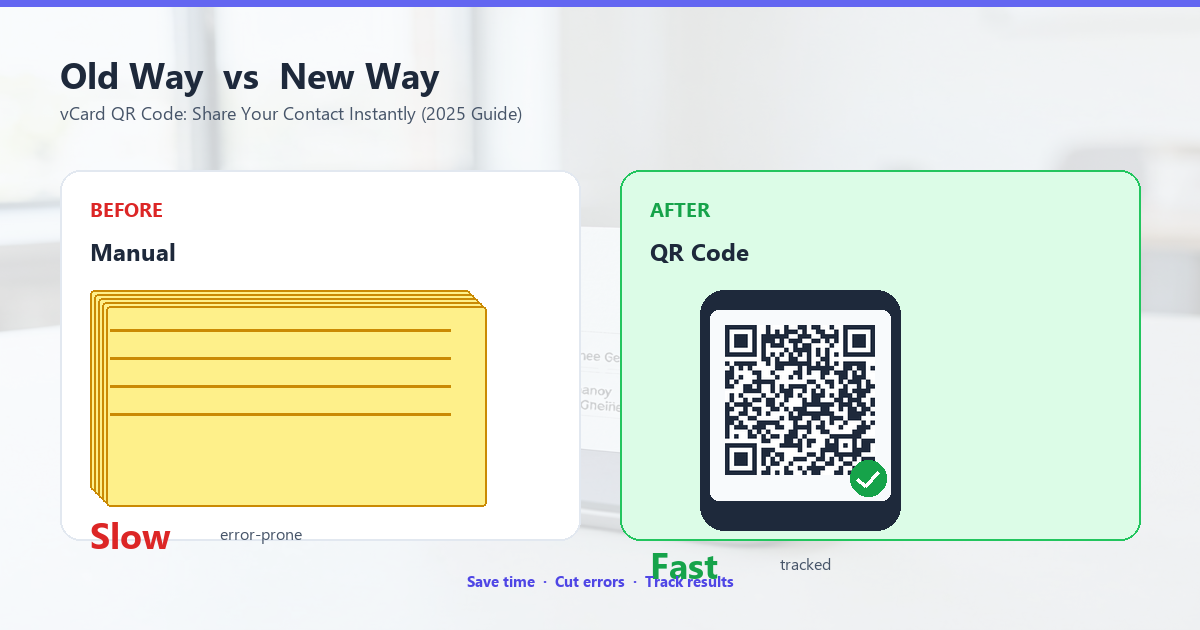
Branded vs. Plain: Does Design Matter?
Functionally, a black-and-white QR code and a branded one are identical. Both scan. Both save the contact. But there\u2019s a perceptual difference that matters for business.
A plain QR code says \u201cthis is a free tool someone downloaded.\u201d A branded QR code with your logo and colors says \u201cthis is part of the experience we\u2019ve designed for you.\u201d The latter is more memorable and reinforces brand identity with every scan.
If you\u2019re a freelancer, consultant, or business owner, the branded version is 5 extra minutes of work. Worth it.
Frequently Asked Questions
Is a vCard QR code private?
The contact info you encode is public to anyone who scans the code. So treat the QR code like a digital business card \u2014 put it where you want people to scan it, not where random passersby can grab a photo. For a personal contact card, this is fine. For a more private contact method, consider a link-based QR code (like a Linktree or your own contact page) instead of an embedded vCard.
Do vCard QR codes work on iPhone?
Yes. iOS 11 and later (so iPhone 5S and newer, released 2013 onward) can read vCard QR codes with the default Camera app. No third-party app required.
Do they work on Android?
Yes. Android 10 and later (released 2019 onward) supports vCard QR codes in the default camera or Google Lens. Some older Android phones need a third-party scanner app, but those are increasingly rare.
vCard 3.0 vs 4.0: which should I use?
Use vCard 3.0. It\u2019s supported on every phone in active use. vCard 4.0 is more compact but has spotty support \u2014 some older Androids won\u2019t recognize it. The size difference for a typical business card is only a few dozen characters; it\u2019s not worth the compatibility risk.
How much info can a vCard QR code hold?
It depends on the QR code version. The largest standard QR code (Version 40 with error correction L) holds up to 2,953 bytes of data, or about 4,000 alphanumeric characters. In practice, a vCard with all standard fields fits comfortably in any error correction level. If you add a photo, the QR code gets significantly larger and harder to scan.
Do vCard QR codes expire?
No. A QR code is just encoded text. It doesn\u2019t point to a server, it doesn\u2019t have an expiration date. The only thing that changes is your contact info \u2014 and you can update the code anytime without changing the placement.
Can I include multiple phone numbers or emails?
Yes. vCard supports multiple entries for most fields. Just list them on separate lines with appropriate TYPE labels:
TEL;TYPE=CELL:+14155551111\nTEL;TYPE=WORK,VOICE:+14155551234\nEMAIL;TYPE=WORK:[email protected]\nEMAIL;TYPE=PERSONAL:[email protected]Phones handle this gracefully \u2014 multiple numbers and emails each get their own field in the contact.
Get Your vCard QR Code in 60 Seconds
You\u2019ve read the theory. Now make the actual code. QR Tool Studio has a free vCard QR generator that works in your browser \u2014 no signup, no email, nothing installed. Just type your details, customize the colors if you want, and download.
The next conference, the next networking event, the next cold email \u2014 your contact is one scan away.