A QR code for events is the fastest way to handle tickets, check-in, attendee information, and post-event follow-up. Scan to enter, scan to check in, scan to rate the session, scan to download the slides. Modern events use QR codes for everything from small meetups to 100,000-person conferences.
This guide covers the 6 most common QR code uses at events, how to set up each one, and the operational tips that make them work at scale.
1. Event Tickets
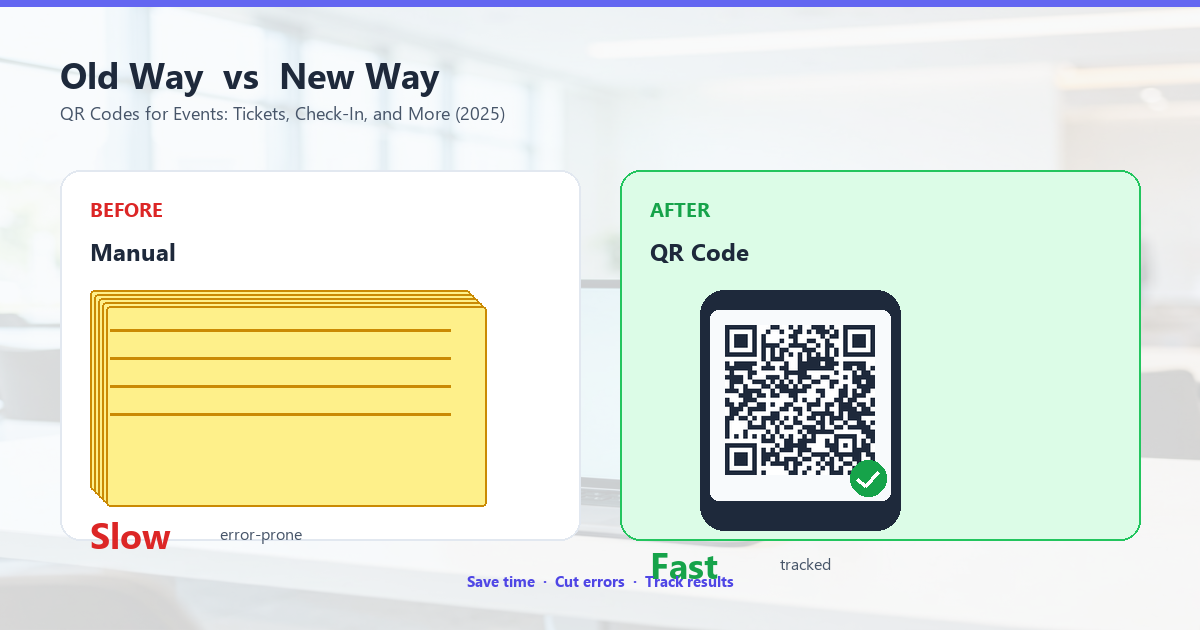
Replace paper tickets with QR-code-bearing tickets (digital or printed). The attendee shows the QR code at the door; staff scans it; the system marks them as checked in.
How to set it up:
- Use an event platform that generates QR-coded tickets (Eventbrite, Tito, Humanitix, etc.)
- Each ticket has a unique QR code (or all attendees get the same QR code pointing to a registration confirmation)
- Attendees receive the ticket via email or the event app
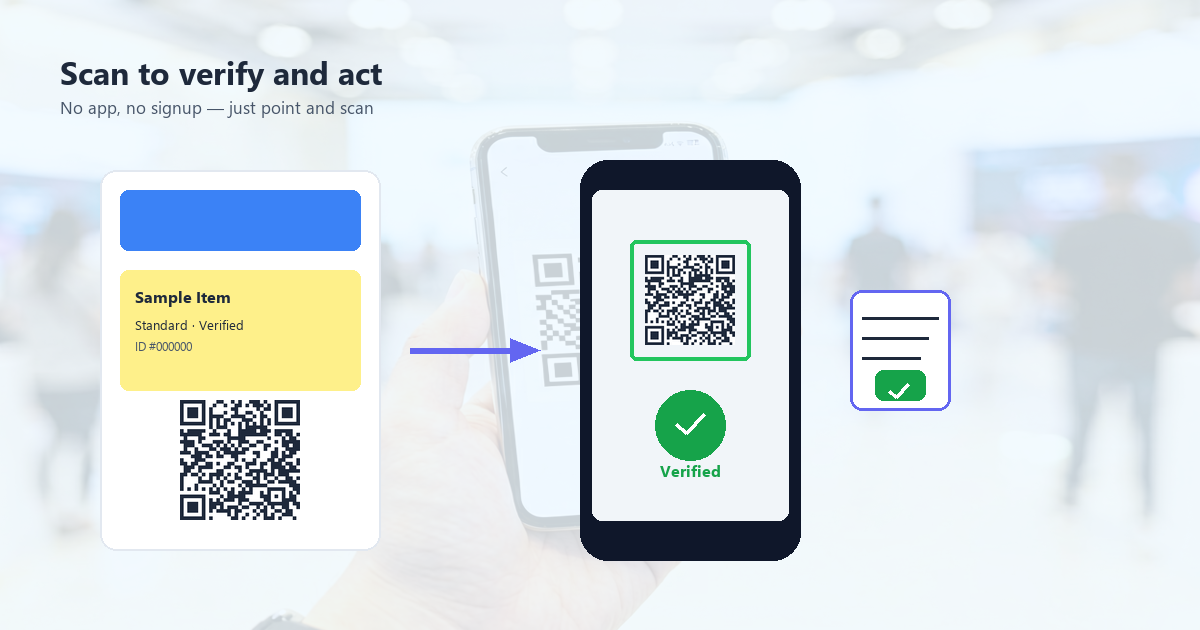
- At the door, staff scan the ticket with a phone or dedicated scanner
Unique-per-attendee tickets are more secure (can\u2019t be duplicated) but require a check-in system. Shared tickets are simpler to deploy but can be screenshotted and shared.
2. Door Check-In
For events where attendees preregister, a single QR code on signage lets them check in by scanning. The system records their arrival time, prints a name badge, or simply marks them as present.
How to set it up:
- Create a Google Form or use your event platform\u2019s check-in feature
- Get the form URL
- Generate a QR code pointing to that URL
- Post the QR code at the entrance with text: \u201cScan to check in\u201d
For higher-volume events, dedicated check-in apps (like Eventbrite\u2019s Organizer app) let staff scan tickets directly. The QR code on this guide is for attendee self check-in, which is faster for everyone.
3. Session Sign-In
For multi-session events (conferences, training, workshops), a QR code at each session door lets attendees sign in for that specific session. This gives you attendance data per session, useful for CEU tracking, follow-up emails, and capacity planning.
How to set it up:
- Create one Google Form per session (or one form with a \u201cWhich session?\u201d dropdown)
- Generate a unique QR code per session
- Post each QR code at the corresponding session door
- Attendees scan, check their name, submit
This is the easiest way to track which sessions were popular, which speakers drew crowds, and which time slots had overflow.
4. Post-Session Surveys
Show a QR code at the end of each session: \u201cScan to rate this session.\u201d Attendees scan, fill out a 1-question Google Form (\u201cHow would you rate this session? 1-5\u201d), and submit. The data helps you understand which sessions landed and which need to be redesigned.
How to set it up:
- Create a Google Form with 2-3 questions (rating, comments, suggestions)
- Generate a QR code for the form URL
- Show the QR code on the closing slide of every session
- Attendees scan from their seats
Response rates are typically 20-40% for sessions where the speaker actively asks for feedback. Higher than email surveys because the friction is one tap.
5. Lead Capture / Networking
For trade shows and B2B events, QR codes on badges or business cards let attendees exchange contact info instantly. The receiving party scans, the contact saves to their phone. No typing, no losing paper cards.
How to set it up:
- Use a vCard QR code generator (most QR generators support vCard format)
- Encode the attendee\u2019s contact info as a vCard (name, company, email, phone, title)
- Print the QR code on the back of the name badge or on a business card insert
- When two attendees meet, one scans the other\u2019s code; the contact saves automatically
For larger events, dedicated lead capture apps (like 30m Microevent or Bizzabo) add lead scoring and CRM integration.
6. Slide and Material Downloads
Show a QR code at the end of a presentation: \u201cScan to download the slides.\u201d Attendees scan, get the PDF or the link. No typing the URL, no forgetting the email follow-up.
How to set it up:
- Upload the slides to Google Drive, Dropbox, or your website
- Get the shareable URL
- Generate a QR code for the URL
- Show the QR code on the closing slide and throughout the Q&A
This works equally well for whitepapers, recordings, and follow-up resources.
Operational Tips for Event QR Codes
QR codes at events fail for predictable reasons. Here are the tips that prevent the most failures:
1. Test on multiple phones before the event
Don\u2019t discover at the door that your QR code doesn\u2019t scan on iPhone 12. Test with at least 3 different phones, 3 different lighting conditions, and 3 different distances. This takes 15 minutes and saves hours of chaos at the door.
2. Size the QR code for the scan distance
For check-in (close-range, 20-30 cm), 2-3 cm is enough. For session sign-in (far-range, 1-2 m), 5-10 cm. For signage across a room (5+ m), 20+ cm. Bigger is always better than smaller.
3. Use a dedicated check-in app for high-volume events
If you\u2019re expecting 500+ attendees, the staff phone camera will struggle to keep up. Use Eventbrite\u2019s Organizer app, Humanitix app, or a dedicated check-in app. These are designed for fast scanning and offline operation.
4. Have a fallback for failed scans
Even with perfect QR codes, some attendees will have cracked screens, low batteries, or phones without cameras. Have a paper list, a name lookup, or a \u201ctype your email\u201d fallback.
5. Print more QR codes than you need
If you have 4 check-in stations, print 6 QR codes. Stickers, signs, and printed codes get damaged during events. Having spares prevents the \u201cwe ran out\u201d scramble.
6. Monitor scan rates in real time
For sessions with QR-coded surveys, watch the response rate during the session. If you\u2019re getting 5% response rate at the midpoint, you\u2019re underperforming. Announce the QR code again or extend the survey window.
At the Venue: Day-Of Tips
The day of the event is when most QR code problems surface. Here\u2019s the day-of checklist:
Arrive 1 hour early
Test the QR codes on actual venue signage. Check that they scan from the expected distance. Verify that the destination URLs still work (some event platforms change URLs).
Have backup scanning options
Bring a portable scanner (like a Bluetooth barcode scanner, $30 on Amazon) as a backup. The dedicated scanner is faster than a phone for high-volume check-in and never runs out of battery.
Train your staff
Brief check-in staff on the QR code workflow before the event. Show them what a successful scan looks like. Have a protocol for failed scans.
Monitor for sticker overlays
For events where attendees can place QR codes on shared surfaces, monitor for sticker overlays. Some attendees (rarely) prank events by placing scam QR codes over legitimate ones.
Test throughout the day
QR codes can degrade during events (fingerprints, smudges, damage). Re-test periodically and replace damaged codes.
Post-Event: Follow-Up
QR codes enable a few post-event activities that aren\u2019t possible with paper tickets:
Targeted follow-up emails
If attendees scanned a session QR code, you know which sessions they attended. Send targeted follow-up emails (\u201cThanks for attending the AI panel \u2014 here are the slides\u201d).
Personalized thank-yous
Use the data from your check-in QR code to send personalized thank-you messages: \u201cThanks for joining us at [Event Name] on [Date]. We hope you enjoyed the keynote.\u201d
Data for next year
Save the attendance data, survey responses, and engagement metrics. Use them to plan next year\u2019s event: which sessions to repeat, which speakers to invite, which times to schedule.
Frequently Asked Questions
What if attendees don\u2019t have smartphones?
Have a paper backup: a sign-in sheet at the door where attendees write their name and email. The QR code is for the 95% who have phones; the sign-in sheet is for the 5% who don\u2019t.
Can the QR codes be reused for next year\u2019s event?
Only if the destination URL is the same. If you use the same form for two years in a row, the QR code stays valid. If the form URL changes, regenerate the QR code.
How do I prevent people from screenshotting and sharing tickets?
Use a unique-per-attendee QR code that\u2019s invalidated after first scan. This is built into most event platforms (Eventbrite, Tito, etc.) for paid events.
What\u2019s the minimum internet speed for QR code scanning?
Scanning the QR code works offline. Loading the destination URL needs internet. At a venue, ensure you have WiFi or staff phones with good cellular signal. Have a backup plan (paper list) for internet outages.
Can I use QR codes for hybrid events?
Yes. The same QR codes work for in-person and virtual attendees. Post the QR codes in the venue for in-person attendees; share the same URLs via email or chat for virtual attendees.
Conclusion: QR Codes Are the Event Operating System
Modern events use QR codes for tickets, check-in, session tracking, surveys, networking, and resource sharing. The setup is fast (60 seconds per code), the data flows to a spreadsheet automatically, and the attendee experience is frictionless.
For best results: start small (one QR code, one use case), test thoroughly before the event, have a backup plan for failures, and use the data for follow-up. Once you\u2019ve used QR codes at one event, you\u2019ll never go back to paper tickets.