A QR code for a PDF (or any document) lets users download, view, or open a file with a single scan. The user points their camera, the file opens in their default viewer, and they can read, save, or share it. It\u2019s the most frictionless way to distribute menus, manuals, contracts, reports, and any other document from a physical surface to a phone.
This guide shows you how to make a PDF QR code, how to host the file so it works reliably, and the considerations for large files. It takes about 5 minutes.

What Is a PDF QR Code?
A PDF QR code is a standard QR code that, when scanned, opens a URL pointing to a PDF file. The user\u2019s phone opens the URL, and depending on the device, the PDF either downloads and opens, or opens in a built-in PDF viewer.
The QR code itself just contains a URL. The PDF is hosted somewhere \u2014 your website, a cloud storage service, or a CDN. The QR code is the bridge between the physical surface (sign, business card, packaging) and the digital file.
When to Use a PDF QR Code
PDF QR codes are useful in any context where you want to distribute a multi-page document from a physical surface:
- Restaurant menus. A multi-page menu on table tents or window clings. Scan to see the full menu with photos and prices.
- Product manuals. A 50-page manual on product packaging. Scan to get the full manual without printing it.
- Contracts and agreements. A lease or service agreement on a sign-in desk. Scan to read and sign digitally.
- Annual reports. A 30-page report on a poster or mailer. Scan to read the full report.
- Brochures. A 4-page brochure on a small print ad. Scan to get the full version.
- Warranty registrations. A registration form on a product. Scan to fill out and submit.
PDFs are particularly useful for documents that have visual layout, multiple pages, or need to be printed/saved. Plain text or single-page content usually doesn\u2019t need a PDF \u2014 a web page works fine.
Where to Host the PDF
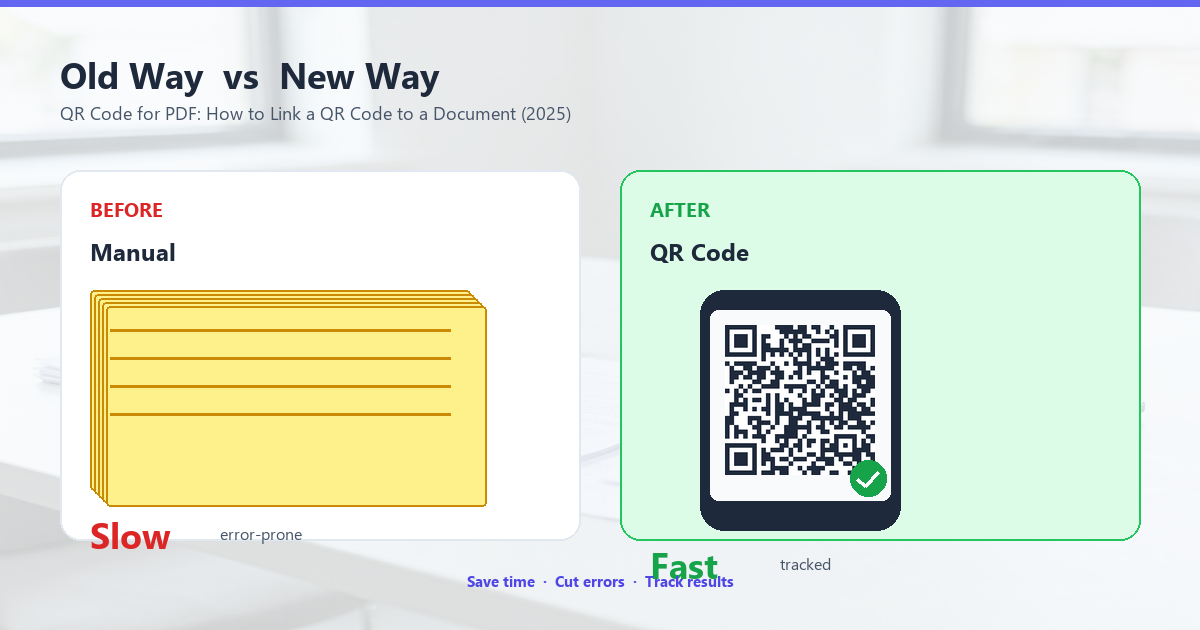
The PDF needs a stable URL that the QR code points to. The URL must:
- Be accessible from any phone browser
- Serve the file with the correct MIME type (application/pdf)
- Not require login or authentication
- Not change over time (changing the URL means reprinting the QR code)
Three common hosting approaches:
1. Your own website
Upload the PDF to your web server. Use a stable URL like https://yourbusiness.com/menus/dinner.pdf. Best for businesses that already have a website and IT infrastructure.
2. Cloud storage (Google Drive, Dropbox, OneDrive)
Upload the PDF, get a sharing link, make it public. The URL will be long but it works. Best for small businesses without web servers.
Note: Google Drive and Dropbox sharing links can change format occasionally. If you go this route, test the URL periodically and update the QR code if needed.
3. Static hosting (Vercel, Netlify, GitHub Pages)
Upload the PDF to a static host with a stable URL. Best for high-traffic deployments where reliability matters. The cost is typically $0/month for the kind of traffic QR codes generate.
The PDF URL
The QR code points to the PDF URL. There are two common ways to handle this:
Direct PDF URL
The URL points directly to the PDF file:
https://yourbusiness.com/menus/dinner.pdfWhen scanned, the phone either opens the PDF in a built-in viewer, downloads it and opens it, or opens it in a browser. Behavior varies by device.
HTML page with embedded PDF
The URL points to an HTML page that embeds the PDF:
https://yourbusiness.com/menus/dinnerThis gives you more control over the user experience. You can add branding, download buttons, related content, or analytics. The cost is more setup work.
For most deployments, the direct PDF URL is fine. The HTML wrapper is useful when you need a custom viewer experience or want to track scans.
File Size Considerations
PDF file size affects both the QR code (the URL gets longer) and the user experience (longer download time). Keep the PDF under 5MB if possible.
Tips for keeping PDFs small:
- Compress images in the PDF (use \u201cSave for Web\u201d or similar)
- Use JPEG instead of PNG for photos (PNG is for graphics, JPEG is for photos)
- Use a reasonable resolution (150-200 DPI for screen, 300 DPI for print)
- Avoid embedding fonts you don\u2019t need
- Use a PDF optimizer tool (Adobe Acrobat, Smallpdf, iLovePDF)
A 50-page manual can be 5-50MB depending on the images. A 4-page brochure is usually 500KB-2MB.
What Users See When They Scan
The user experience varies by phone and PDF source:
iOS
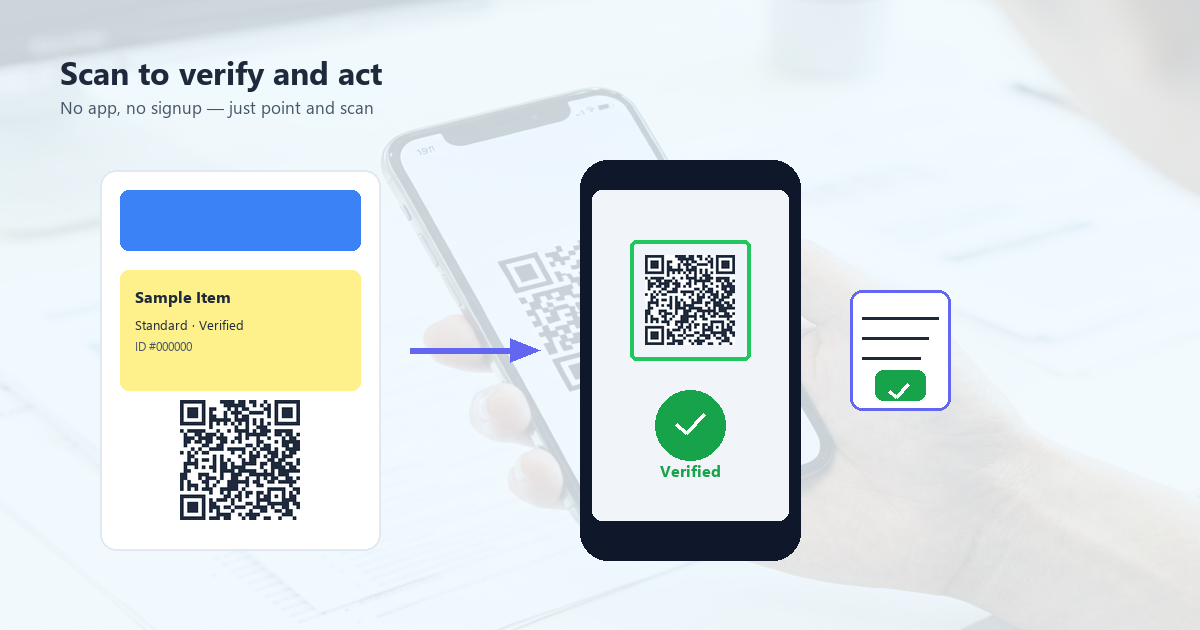
When a user scans a direct PDF URL, iOS shows a preview of the PDF in Safari. The user can tap to open the full PDF, save it to Files, or share it.
Android
When a user scans a direct PDF URL, Android either opens the PDF in Chrome (which has a built-in PDF viewer) or downloads the file. The user can view, save, or share it.
Different behaviors
The behavior can vary based on the browser, the Android version, and whether the user has a PDF viewer app installed. To get consistent behavior, link to an HTML page that embeds the PDF \u2014 the user always sees a consistent view.
Updating the File Without Changing the QR Code
If you need to update the PDF without changing the QR code, use a redirect:
- Host the PDF at a stable URL (e.g.,
yourbusiness.com/menu.pdf) - Set up a server redirect so that URL always points to the current file
- Update the actual PDF file whenever the menu changes
- The QR code stays the same \u2014 the redirect always points to the latest version
This is the right approach for restaurant menus, which change seasonally. The QR code on the table tent stays the same for years; the file behind it changes every quarter.
5 Common PDF QR Mistakes
1. File too large
A 50MB PDF will frustrate users on cellular networks. Compress aggressively, or split into multiple smaller PDFs.
2. URL changes when file updates
If the URL contains the file version (e.g., menu-v3.pdf), you have to reprint the QR code every time the menu changes. Use a stable URL with a redirect.
3. No HTTPS
Modern phones warn or block downloads from non-HTTPS URLs. Always host PDFs on HTTPS.
4. Login required
If the user has to log in to access the PDF, most will abandon the scan. Make the PDF public.
5. Wrong MIME type
If the server serves the PDF as application/octet-stream instead of application/pdf, the phone may not know how to handle it. Check the server configuration.
Frequently Asked Questions
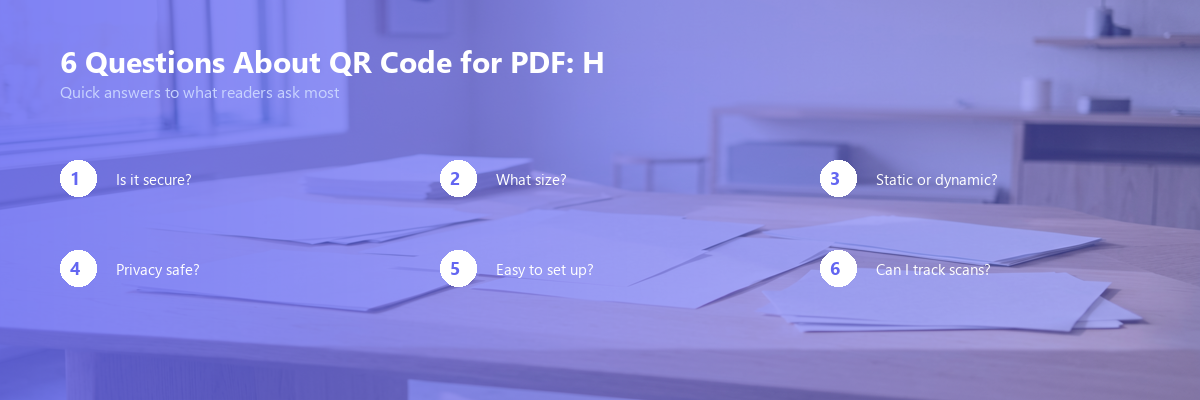
Can I use a free cloud service to host the PDF?
Yes, but be aware that the URL can change. If the service is down, the QR code stops working. For business-critical deployments, host on your own infrastructure or a reliable static host.
What if the PDF has multiple pages?
That\u2019s fine. The phone opens the PDF and the user scrolls through. Just keep the file size reasonable (under 5MB).
Can I track scans of a PDF QR code?
Yes, if the URL points to an HTML page (not the direct PDF). Use a tracking redirect or a tracking pixel on the HTML page. Direct PDF URLs don\u2019t support tracking natively.
Can I make the PDF editable or signable?
Yes. Use a PDF form (Acrobat, DocuSign, etc.) and link to it. The user scans, opens the form, fills it out, and submits. Useful for contracts, registrations, and applications.
Does the PDF QR work on iPad?
Yes. iPads open PDFs in the same way as iPhones. The behavior is consistent.
Conclusion: The Best Way to Share a Document
PDF QR codes are the most frictionless way to distribute a document from a physical surface. The user scans, the file opens, they can read, save, or share. No app to download, no typing, no friction.
For best results: keep the PDF under 5MB, host it on a stable HTTPS URL, and use a redirect so you can update the file without changing the QR code. Test on multiple phones to make sure the download and view experience works as expected. The 5-minute setup pays back the first time someone scans instead of asking for a paper copy.