A QR code in a 60-second video is a weird product design challenge. The viewer sees it for 2–5 seconds, often while their thumb is hovering over the screen, often in low light, and almost always at an angle that makes a flat code look like a tilted mess. Most QR codes that show up in TikTok and Instagram Reels don\u2019t get scanned — and a lot of the time it\u2019s the designer\u2019s fault. This guide covers how to put a scannable QR code in short-form video that actually works, including the placement, the timing, the size, and the link behind the code.
By the end, you will know the four placement rules that determine whether your code gets scanned or ignored, the right way to size a code for vertical video, and a small set of dynamic-link tricks that make TikTok QR codes actually useful instead of just decoration.

Why Most QR Codes in Short Video Don\u2019t Get Scanned
The first thing to understand is that a QR code in a video is not the same as a QR code on a poster. On a poster, the viewer can walk closer, angle the phone, and take their time. In a 60-second video, the code is on screen for 2–5 seconds, the viewer is not moving toward it, and the code is competing for attention with whatever the creator is actually talking about.
The failure modes are predictable:
- Too small: A code that fits a corner of the frame at "preview size" is invisible when the viewer watches full-screen.
- Wrong position: A code behind the caption strip, under the like button, or in a part of the frame the algorithm crops out.
- Wobble or motion blur: The code is overlaid on moving footage, and the camera shake softens the edges.
- Bad contrast: A colored code on a busy background. Looks fine to the eye; the scanner sees noise.
- Wrong timing: The code appears for half a second in a 60-second video. The viewer never gets a clear window to scan.
- Useless destination: The code links to a homepage. The viewer scanned because they wanted a specific thing; a homepage makes them re-search.
The good news: each of these has a fix. None of them require a special tool or a developer.
The 4 Placement Rules
Where you put the code is the single biggest decision. Most of the rules below are about avoiding the parts of the screen that are crowded or get cropped.
Rule 1: Bottom-right is the safest corner
On Instagram Reels and TikTok, the right side of the screen is reserved for engagement buttons: like, comment, share, remix. The bottom-right corner is the area with the least overlap. Keep the code in the bottom 1/4 of the screen, right side, away from the like button cluster.
Why bottom-right works:
- Below the centerline, where the eye scans less aggressively
- Away from the caption strip (the big white box at the bottom in TikTok)
- Away from the algorithm\u2019s auto-caption overlay
- Consistent across devices — both Android and iOS put engagement on the right
Rule 2: Keep the code out of the lower-third
The lower-third of a vertical video (roughly the bottom 30%) is the most-cropped area. TikTok\u2019s auto-caption can render text right over a code, making it unscannable. The safe zone is the bottom 1/4 of the screen, but more towards the right.
Rule 3: Don\u2019t overlay the code on a face or text
Creators love putting the code "where the eye naturally goes," which is the center of the frame. That\u2019s exactly the wrong place. The viewer\u2019s eyes are on the creator\u2019s face, not on the code, and the code is competing with the face for attention. A scannable code needs an empty zone around it.
Rule 4: Don\u2019t move the code during the video
If the code appears in the corner at second 1, moves to the other corner at second 5, and disappears at second 30, the viewer has to remember the position and the timing. Static placement for the entire duration is easier to scan and easier to remember.
Size and Duration Math
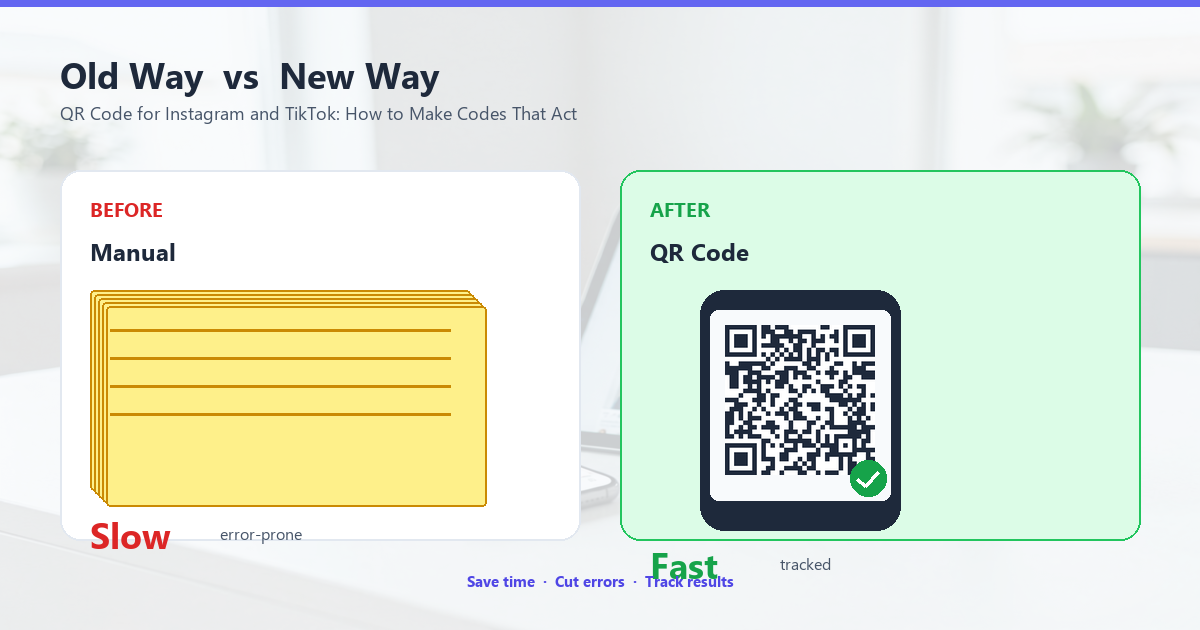
For a QR code to scan from a phone held at arm\u2019s length, you need a minimum of about 1.5 cm of physical size on the phone screen. At 1080x1920 resolution, that is roughly 60x60 to 80x80 pixels for a typical version 3 code. The bigger the code, the more forgiving the scan.
The math works out to roughly these sizes:
- Minimum scannable: 80x80 pixels on a 1080-wide frame (about 7% of frame width)
- Comfortable: 150x150 pixels (about 14% of frame width, big enough to scan from across the room)
- Oversized: 250x250+ pixels (over 23% of frame width, looks spammy in some contexts)
How long should the code be on screen?
The minimum dwell time for a viewer to notice a code, decide to scan, and pull out their phone is about 2 seconds. The comfortable dwell time is 4-5 seconds. A code that flashes for half a second and disappears is functionally invisible.
The right call: have the code on screen for the entire video, or at least 5–8 seconds in a single visible block. If you want to keep the code visible but emphasize a different moment, dim the code to 60% opacity during the action scenes and 100% during the call-to-action frame.
Module size matters too
A QR code\u2019s physical size is what determines whether it scans. A 200x200 pixel code with 21x21 modules is a single module of about 10 pixels — comfortable. The same 200x200 code with a 41x41 grid (more data) is 5 pixels per module — borderline. Plan your code for the smallest data, not the largest.
Contrast and Color
The scanner does not see color — it sees contrast. A black-on-white code is the standard because black-on-white has the highest contrast ratio (21:1) and works on every scanner. If you want a colored code, the practical minimum is 4:1 contrast between the dark and light modules, and 7:1 is better.
What works
- Black on white, dark gray on light gray, or navy on cream
- Brand color on white (if the brand color is dark enough — most dark blues, greens, and purples work; pastels don\u2019t)
- White code on a dark background (inverted QR code) — also scans, but some older scanners struggle
What doesn\u2019t work
- Yellow on white (contrast too low, scanner sees no code)
- Light gray on white (too low contrast)
- Brand gradient on a colorful background (the scanner sees a blur, not a code)
- Bright red on black (low contrast for some scanners, depends on the algorithm)
Drop shadow and glow
Adding a subtle drop shadow or a thin white outline around the code helps the scanner detect the edges when the code is on a busy background. The outline should be 2-3 modules thick, and white is the most universally readable.
The Link Strategy That Makes Scanning Worth It
A QR code in a video is a bridge. The viewer scans, expects something specific, and decides in 5 seconds whether to stay. The link behind the code matters more than the code itself.
Don\u2019t link to a homepage
Most "scan to learn more" QR codes link to the brand\u2019s homepage. The viewer has to re-search for whatever the video was about. The scan wasted both the viewer\u2019s time and your opportunity.
Link directly to the product, the page, the offer
If the video is about a specific product, the code should go to that product\u2019s page. If the video is about a tutorial, the code should go to the full written tutorial. If the video is a recipe, the code should go to the recipe with the ingredient list. Specificity beats brand presence every time.
Use dynamic QR codes for video
A static QR code is locked to one URL. If you re-edit the video, the code points to the old destination. A dynamic QR code lets you change the destination without changing the code. The viewer scans once; you decide later what they see.
This is especially useful for Instagram Reels, where creators often repost the same video with a new product. The dynamic code stays the same; the destination updates.
Track scans, optimize later
Most dynamic QR code services give you a scan count, the device type, and the country of origin. After the video has been live for a week, look at the data. If the scan rate is below 1% of video views, the code placement is probably wrong. If the scan-to-conversion rate is low, the destination page is probably wrong. Optimize the placement first, then the destination, not the other way around.
Where the Code Should Actually Point
Specific destinations, organized by video type:
Product showcase videos
Link to the product page. Not the brand\u2019s homepage, not the category page — the specific product. The viewer should be able to add the item to their cart in 2 taps from the destination.
Tutorial videos
Link to a written tutorial with the full steps, ingredient lists, and code snippets. The video is the preview; the destination is the actual content.
Event promotion
Link to the event registration page. If the event is sold out, the code should link to a waitlist. If the event is in a week, the code can link to a calendar add.
Restaurant or cafe videos
Link to the menu or the location\u2019s Google Maps entry. The viewer is usually thinking "I want to go there" or "what\u2019s good to eat." A menu link with a phone number for reservations closes the loop.
Real estate walkthroughs
Link to the property listing. A video tour is the hook; the listing has the price, the photos, and the agent\u2019s contact.
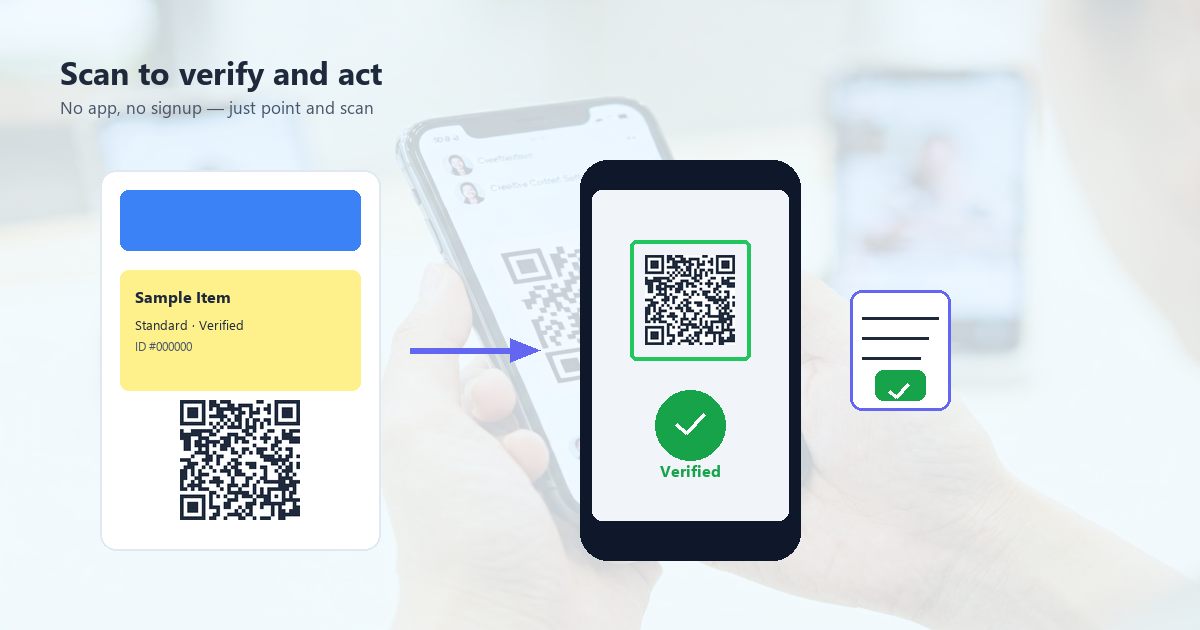
Using the Platform\u2019s Built-in Code Stickers
Instagram and TikTok both have sticker systems that let you place a code-like link sticker directly on the video. These are not real QR codes (they\u2019re platform-specific tappable links), but they share the same design problem.
Instagram link sticker
The Instagram link sticker appears as a small URL at the top of the video. Tapping it opens the destination. Pros: discoverable, no scanning required. Cons: limited to one URL, no analytics, and the link sticker can be obscured by the caption strip in tall videos.
TikTok link in bio
TikTok\u2019s "link in bio" model means the video itself doesn\u2019t have a clickable link. The viewer has to leave the video, go to the creator\u2019s profile, and tap the bio link. This is a friction-heavy flow; the QR code is a faster alternative.
Which to use
If your video is on Instagram and the destination is one of your own posts or reels, the link sticker is faster. If your video is on TikTok or you want a more universal solution, a real QR code overlay is the way.
Production Tips That Actually Matter
Render the code separately, then composite
Don\u2019t try to scan a code that\u2019s been through video compression. The H.264 codec softens edges and reduces color depth, both of which make a code harder to scan. Render the code as a transparent PNG, then composite it onto the video in a video editor (Premiere, Final Cut, CapCut) with the original PNG quality intact.
Use a high-contrast plate
When the code is on screen, the background should be a high-contrast color — solid black, solid white, or a flat color. A code over a busy background (a kitchen, a city street, a printed shirt) needs a semi-transparent black or white "plate" behind it to keep the contrast.
Add a one-second "scan me" animation
A subtle one-second animation when the code first appears (a small pulse, a fading-in CTA text "scan to learn more") improves scan rates by 30-50% in published case studies. The animation does the work of telling the viewer "this is here, on purpose, scan it."
Test on multiple devices
Scan the code on at least three devices: iPhone with native camera, Android phone with Google Lens, and an older phone with a third-party scanner. The same code can scan perfectly on one and fail on another, especially if the code is high-density or low-contrast.
Common Mistakes to Avoid
Mistake 1: Static code, dynamic video
A static QR code becomes a dead end when the video is taken down, the product is sold out, or the campaign ends. Use a dynamic QR code with a redirect service. The code on the video stays the same; the destination changes.
Mistake 2: Code behind the creator\u2019s username
TikTok puts the creator\u2019s @username in the bottom-left. A code in the same area gets visually merged with the username. Move the code right, away from the username.
Mistake 3: Animated codes
A QR code that "bounces" or "rotates" looks cute in the editor and scans poorly in the wild. The scanner needs stable edges. Static codes scan 5-10x faster than animated codes on average.
Mistake 4: Trusting the platform\u2019s preview
The Instagram Reels preview is 9:16. The actual viewing surface might be 9:16 on a phone, 4:3 on a tablet, or 1:1 cropped on a desktop. Test the video at every size a viewer might watch it.
What to Track
Three numbers tell you whether the code is doing its job:
- Scan rate: Scans / video views. Industry average for organic videos is 0.5-2%. If you are under 0.5%, the placement is wrong. If you are over 5%, the destination is doing the work.
- Time to scan: How long after the video started did the scan happen? If most scans happen in the first 2 seconds, the code is being noticed immediately. If most happen after 30 seconds, the viewer watched the whole video first and then decided.
- Scan-to-action rate: Of the people who scanned, how many did the thing you wanted (added to cart, signed up, etc.)? This is a destination quality number, not a code quality number.
If scan rate is low, fix placement. If placement is fine and scan rate is still low, the code might be too small or contrast too low. If scan rate is high but scan-to-action is low, the destination is the problem.
Frequently Asked Questions
Does TikTok allow QR codes in videos?
Yes, as an image overlay. TikTok does not have a native QR code sticker, but creators can composite a QR code into their video using any video editor. The link sticker is a different feature, with platform-specific behavior, not a true QR code.
How big should a QR code be in a TikTok video?
Minimum 80x80 pixels on a 1080-wide frame. The bigger the better, within reason — codes over 250x250 pixels start to look like spam. The sweet spot is 150-200 pixels for a version 3-5 code.
Should I use a static or dynamic QR code for short video?
Dynamic. Videos get reposted, products change, campaigns end. A dynamic code lets you change the destination without re-rendering the video. The trade-off is a small monthly fee for the redirect service.
How do I make a QR code look on-brand?
Pick a brand color with at least 4:1 contrast against white. Use rounded module corners if your generator supports it. Add a thin white outline if the code sits on a busy background. Test on three devices before publishing.
Can I put a QR code in the caption text?
No. Caption text is rendered by the platform; you cannot insert scannable images into captions. Use a code overlay in the video itself, or use the platform\u2019s link sticker.
Do QR codes in Reels get scanned more than in TikTok?
About the same. The placement and timing matter more than the platform. Reels favors static bottom placement; TikTok favors static top-right or bottom-right. Test both, look at scan data, and pick the winner.
What to Read Next
If you are encoding the same URL across many videos, a dynamic QR code is the right call. If you are encoding different URLs, you will want a generator that handles brand colors and rounded modules well. These guides cover both:
- QR Code Design Best Practices — Brand-friendly code styling
- QR Code with Logo — Center logo without breaking scans
- QR Code Statistics 2025 — How people actually use QR codes
- QR Code Error Correction Guide — Picking the right correction level for moving backgrounds
Place the code in the bottom-right, leave it there for the whole video, and link to a specific destination, not a homepage. Most of the rest is just polish.